01 · One connected record
Sentinel Incident captures what happened. Investigate builds the event sequence and evidence. Investigate Pro tests explanations and reviews barrier failures. Bowtie models the controls needed to prevent recurrence or reduce consequences. Assure checks whether those controls and corrective actions work.
| Workspace | Your task | Connection |
|---|---|---|
| Incident | Report, triage and assign a review owner. | Linked investigation identifier. |
| Investigate | Gather evidence, build the timeline and ask why. | Evidence and supported causal findings. |
| Investigate Pro | Test hypotheses; examine expected and actual barrier performance. | BFA evidence, findings and corrective actions. |
| Bowtie | Review threats, consequences, barriers and degradation controls. | Performance standards and responsible owners. |
| Assure | Inspect controls and review sustained effectiveness. | Verification evidence and outcome reviews. |
An incident report and an investigation are distinct records linked together. Creating an investigation does not delete the original report or automatically prove a cause.
02 · Prepare your company workspace
- Sign in to your client portal and select the correct company.
- Choose an assessment or create a new workspace with Incident as its primary focus.
- Check you can see Incident, Investigate, Investigate Pro, Bowtie and Assure. An administrator must enable Incident in module settings and allocate it in Company products. Pro is allocated separately.
- Arrange owner/editor assessment access for the people responsible for actions and independent verification. Company membership alone does not grant assessment access.
This version reports within an assessment. It does not provide anonymous public reporting or a separate cross-company incident dashboard.
03 · Capture an incident or near miss
- Choose Incident → Report an incident.
- Enter a short factual title, occurrence date, UTC time if known, and site/location.
- Tick every relevant category. An event may involve both an injury and vehicle damage.
- Record the actual impact and a credible potential impact. Explain the potential rating against your organisation’s criteria.
- Describe what happened, separating observations from uncertainty. Record immediate containment and assistance.
- Complete the relevant body or vehicle areas, operational injury observations, asset reference and spill details.
- Apply changes and save. In the connected portal, check the save state before leaving.
These records are visible to authorised assessment members. Do not enter confidential medical histories, treatment details or diagnoses. Retain clinical information in an appropriately restricted system.
04 · Select affected body and vehicle areas
Body injury locations
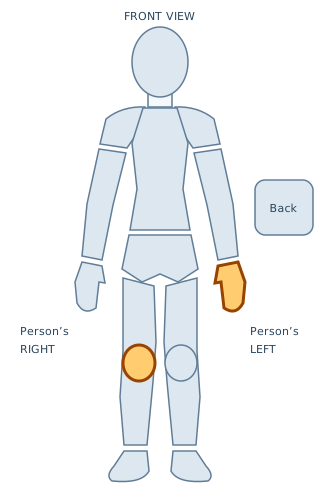
Example: left hand and right knee.
Vehicle contact locations
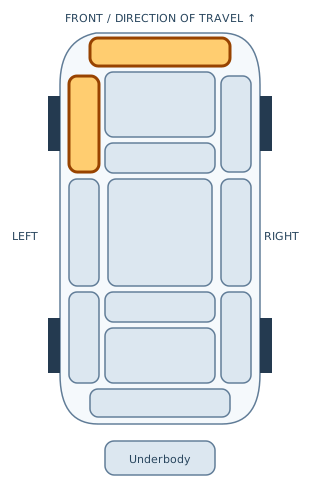
Example: front bumper and left front quarter.
- Click an area on the diagram or tick its labelled checkbox. You may choose multiple areas.
- Click again to remove a selection. Selected areas turn amber with a stronger outline; the labels and selection count confirm your choices.
- For keyboard access, use Tab to focus a diagram area, then Enter or Space to toggle it. The labelled checkboxes offer the same selections.
- Body left/right refers to the person’s own body, viewed from the front. Vehicle left/right is viewed facing the direction of travel.
- Back and underbody have separate selectors. Leg includes the lower leg; choose knee separately where relevant.
- Apply, save, reopen and confirm the selections. These are affected-area markers, not medical diagnoses or engineering damage measurements.
05 · Triage and start the investigation
- Assign the triage owner, review due date and potential-impact rationale. Change the stage to Triaged.
- If an investigation already exists, edit the report and select it in Linked investigation.
- Otherwise, choose Start investigation from the report row. The suite creates a linked investigation using the report’s title, date, account and owner.
- Choose View investigation. Gather evidence in the Evidence register and retain supported file uploads there.
- Build the timeline and 5 Whys/Why Tree. Move into Pro when the complexity or potential severity warrants structured testing.
The report retains its original account. Later edits to the report and investigation do not silently overwrite each other; review both when new evidence changes the factual account.
06 · Review barrier failure in Pro
- Open Investigate Pro and choose Barrier Failure Analysis from the sidebar.
- Choose Review a barrier, then select the investigation. Select an existing Bowtie barrier or leave it unmodelled for a missing barrier.
- Describe the barrier at the time of the event. This historical snapshot remains distinct from today’s Bowtie.
- State its expected function and record observed performance: Unverified, Worked, Failed, Missing or Inadequate.
- Explain the failure mechanism or successful performance, relevant conditions, organisational influences and alternative explanations.
- Link evidence from that investigation and, where available, the relevant causal finding.
- State the recommended improvement and how it should be tested. Evidence-reviewed status requires function, evidence, reasoning and recommendation.
- Create a corrective action. Review the finding in Investigate/Pro before using the existing Bowtie transfer or editing the relevant control.
BFA is an original Sentinel workflow. It is not a Tripod Beta or Kelvin TOP-SET implementation. No barrier is declared failed merely because an incident occurred.
07 · Allocate accountable actions
- Create an action from the incident, BFA row or Actions page. Set its due date, priority and required outcome.
- Open Action allocations and choose Allocate an action.
- Select the existing action, enter the responsible organisation, then choose a named owner and a different verifier.
- Record measurable acceptance criteria. New allocations start at Assigned.
- The owner accepts, progresses the work and records completion evidence before submitting it for verification.
- The independent verifier checks the evidence, records a decision and either returns the work to In progress or marks it Verified complete.
- Schedule the effectiveness review. In Assure, record the sustained outcome against the success criteria. Only a latest Effective review supports closing a managed action.
| Stage change | Authorised person |
|---|---|
| Assigned → Accepted → In progress → Awaiting verification | Allocated owner |
| Awaiting verification → In progress or Verified complete | Allocated verifier |
| Verified complete → Effectiveness review due or Closed | Allocated verifier; closure needs an Effective review |
| Closed → In progress | Allocated verifier, with reopening reason |
| Reassign and reset to Assigned | Assessment owner or company manager; record a reason |
Both people need existing owner/editor assessment access. Allocation does not grant permissions or seats. For an external contractor, use an internal accountable owner unless that contractor has authorised access. Complete workflow closure requires Assure allocation.
08 · Close the incident with evidence
Use Closure review to examine the investigation, outstanding actions and control verification. Directly linked incident actions and actions linked through its investigation findings or BFA must be closed before the report can close. Record the closure rationale, change the stage to Closed, apply and save.
For managed actions, completion and effectiveness are separate decisions. An ineffective later review prevents closure even if an earlier review was effective. Reopen work when new evidence requires it.
09 · Work through the fictional example
- From Incident, choose Load connected training example. This creates a separate assessment; confirm any request to discard unsaved edits first.
- With all modules and Pro allocated, open the Northbank Engineering dispatch-bay near miss.
- Follow its linked investigation, evidence, Pro tests and fictional segregation BFA.
- Inspect the Bowtie segregation barrier, temporary-layout degradation factor and approval/walkdown control.
- Open Assure. The fictional interim review is only partly effective; do not close the related action prematurely.
- Open the separate low-speed vehicle contact exercise. It demonstrates two body and two vehicle selections; it is not a claim that anyone was injured in the Northbank near miss.
- Create your own action allocation using real authorised training accounts. Demonstration records do not automatically assign live staff.
10 · Alerts, exports and practical limits
Incident totals show open events, overdue reviews and high-potential reports within the current assessment. Dates and categories support triage; counts do not establish incident rates or predict future accidents.
Email alerts now offer incident review and action effectiveness due types. Existing overdue-action alerts use the action due date. A workspace owner must configure approved recipients and enable the desired alert types. Working SMTP and the scheduled worker are required. Nothing is sent merely by opening a report.
Use Export for the assessment JSON or printable report. JSON and reports include selected area identifiers and record content. Download retained evidence files separately; attachment bytes are not embedded in those exports.
Importing an exported assessment with live action allocations is rejected until those allocations are removed from the copy and reassigned after import. Account identifiers and approvals must not be carried into a different client company. Preserve the original export as the audit copy.
No automatic statutory reporting, validated forecasting, guest reporting, confidential medical vault, offline mobile synchronisation or desktop update is introduced in this cloud release.
11 · Troubleshooting
| What you see | What to check |
|---|---|
| Incident or Pro button missing | Site module settings, Company products allocation, current company and cached assets. |
| Cannot start investigation | Investigate allocation and completed report owner, review due date and potential rationale. |
| People unavailable for allocation | Company membership, portal capability and owner/editor assessment permissions. Reload Action allocations after changing access. |
| Action transition rejected | Sign in as the allocated owner or verifier, follow the sequence, and provide evidence/review notes. |
| Cannot close action | Assure allocation, latest Effective outcome review, verification note and completion evidence. |
| Conflicting edits | Read the conflict notice and reload/reconcile. Do not assume an unsaved local edit reached the server. |