
NEW IN VERSION 1.5.0
Incident reporting and Barrier Failure Analysis
Report and triage events, select injured body and affected vehicle areas, follow the connected investigation and allocate independently verified actions.
Investigate Pro downloads
Download the Pro handbook · Download the fictional practice case
PDF page 01
SAFETYMAN INTERNATIONAL
Safetyman
Sentinel Suite
The complete guide to Investigate, Investigate Pro, Bowtie and Assure
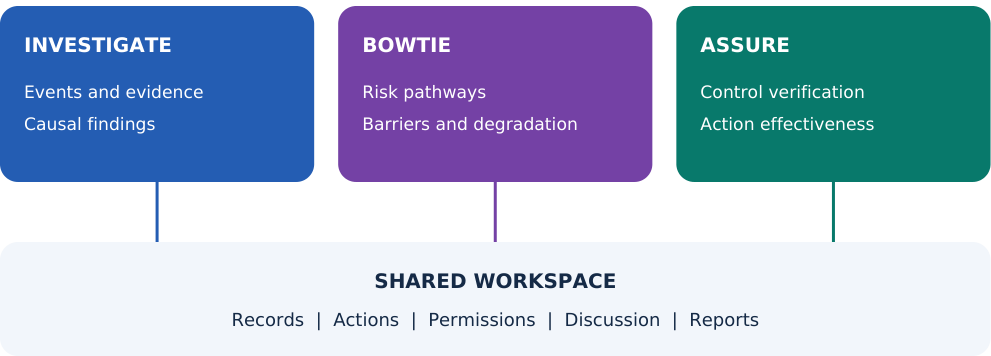
Sentinel brings incident investigation, risk analysis and control assurance into one workspace. It helps your team record what happened, examine why it happened, identify the controls needed and check whether those controls and corrective actions work.
Use Investigate for events, Pro for deeper evidence-led analysis, Bowtie for risk pathways and Assure for continuing checks. Shared records and reviewed transfers connect the workflow. Pro instructions and the Northbank exercise begin on page 48.
Version covered: 1.2.0 | Guide issued: 19 October 2026 Software owner: Safetyman International
This guide describes the supplied company portal release. It does not confirm installation or live testing on your particular website. Available modules and buttons depend on your account and site settings.
Back to contents ↑PDF page 02
START HERE
How the suite works together
One workspace can hold the investigation, the risk assessment and the assurance records for an operation.
Module | What it contains | What you use it for |
|---|---|---|
Sentinel Investigate | 5 Whys, Why Trees, evidence references, timelines, findings and actions. | Understand an event and distinguish evidence from assumptions. |
Sentinel Bowtie | Hazard, top event, threats, consequences, barriers, degradation factors and controls. | Show how control could be lost and what prevents or limits harm. |
Investigate Pro | Hypothesis tests, causal connections, factor reviews and action assurance plans. | Extend an investigation when deeper analysis is needed. |
Sentinel Assure | Control register, standards, verifications and action-effectiveness reviews. | Check protection over time and follow up weak or missing evidence. |
Two ways of connecting your work
Within one workspace: switch modules to use the same saved records. Assure can verify barriers created in Bowtie. Actions can link to findings, controls and other records in that workspace. Discussion, membership and reporting are shared.
Between separate workspaces: propose a Supported investigation finding to an existing or new bowtie. A different person reviews the proposal. Applying it creates or links an element and retains a source snapshot. It does not copy the whole investigation, its actions or its membership.
Connected operations
Company workspaces share records across the three modules. Applied edits save automatically when connected, with conflict protection. Sensor feeds and email alerts require configured services. Forecasting starts by collecting dated observations; statistical acceptance depends on data and review. The desktop application is a separate project.
Back to contents ↑PDF page 03
CONTENTS
Find the task you need
Read pages 4-6 first, then follow the section for the task you want to complete.
Getting started
04 Sign in and understand your access
05 Find your way around and save
06 Create your first workspace
Sentinel Investigate
12 Confirm findings and create actions
Sentinel Bowtie and transfers
13 Understand the bowtie terms
14 Build pathways and barriers
17 Review and apply a transfer
Assurance and shared work
20 Review action effectiveness
21 Use ratings and early warnings
22 Collaborate and approve work
Practice and support
25 Complete the training exercise
27 Set up your company workspace
28 Glossary and daily checklist
29-38 Annotated interface reference views
39-45 Companies, collaboration, frameworks, sensors, alerts and forecasting
46-47 Annual subscriptions and seat allocation
48-62 Investigate Pro: workflow, practice case and evaluation
PDF page 04
GETTING STARTED
Sign in and understand your access
You need both access to Sentinel and permission to open the workspace you want to use.
01
Open your organisation's Sentinel address. Use the website link supplied by your administrator. Choose the COMPANY selector after signing in; then select a workspace belonging to that company.
02
Sign in to your company portal. If the page asks you to sign in, use your assigned account. Contact your administrator if you do not have an account or cannot reset your password.
03
Open an assessment. Use the ASSESSMENT selector at the top. In this release, assessment, project and workspace refer to the same saved container.
04
Check the module buttons. Sentinel Investigate, Sentinel Bowtie and Sentinel Assure appear when allocated to the company and enabled globally. Pro appears within Investigate when allocated.
05
Check what you can change. Missing or disabled editing controls usually reflect your role or the enabled modules. A name entered in an owner field does not grant account access.
Workspace role | What it allows |
|---|---|
Owner | Edit records, manage membership and submit work. Cannot approve their own workspace. |
Editor | Edit records and submit for review. Cannot approve the workspace. |
Reviewer | Read, discuss and make review decisions. Normally cannot edit record content. |
Viewer | Read and export authorised records. Cannot edit, comment or approve. |
PDF page 05
GETTING STARTED
Find your way around and save
Use the top controls to select and save work. Use the module buttons and left-hand menu to choose a task.
Control or area | What to do |
|---|---|
ASSESSMENT selector | Open the saved workspace you need. Check the title before making changes. |
Module buttons | Choose Investigate, Bowtie or Assure. The left-hand menu changes to suit the module. |
Overview | Read the workspace title, owner, scope and record counts. |
+ New | Create a new workspace. This does not add a record to the current one. |
A record title or diagram card | Select it to inspect or edit that record. Keyboard users can focus diagram cards and press Enter. |
Apply changes | Accept an ordinary record form into the current working copy. |
Save changes | Send pending edits immediately. Connected workspaces also save automatically after Apply. Check the saved revision. |
Export / AI assistant | Export the current workspace or open the optional AI drafting dialogue. |
Apply, then confirm the saved revision
Apply changes accepts the form. In your connected company workspace, it schedules an automatic save. Wait for the saved revision indicator before leaving. Save changes sends pending work immediately. In the separate practice workspace, use Save changes explicitly.
Membership, discussion, transfer proposals and review decisions are server operations submitted directly by their dialogues. Save ordinary record changes before opening those operations.
Back to contents ↑PDF page 06
GETTING STARTED
Create your first workspace
Choose the focus that matches your first task. You can use the other enabled modules within the same workspace.
01
Select + New. Enter a short, recognisable workspace title. For practice, use TRAINING - Transfer hose review.
02
Choose Primary focus. Select Sentinel Investigate for an event investigation, Sentinel Bowtie for risk modelling, or Sentinel Assure for a control programme.
03
Select Apply changes. The new workspace is created as a Draft. Check that its title now appears in the top selector.
04
Open Project settings. Select Edit details. Enter Site / operation, Scope, Accountable assessment owner and Next assessment review.
05
Describe the boundaries. State which operation, equipment, location and period the workspace covers. Record assumptions and exclusions so other users understand the assessment.
06
Complete the bowtie context when relevant. If Bowtie is enabled and you are ready to model risk, enter the hazard and top event. An investigation-only workspace can begin without these.
07
Apply changes, then Save changes. Confirm that the unsaved indicator has cleared. Add any other users through Manage members if you are the workspace owner.
Before a workspace can be submitted for review
All focuses need an owner and review date. Investigate also needs an investigation; Assure needs a control. Bowtie needs a hazard, top event, threat and consequence. Any workspace containing bowtie pathways must meet that bowtie baseline too. These are basic completeness checks, not proof that the work is adequate.
Back to contents ↑PDF page 07
SENTINEL INVESTIGATE
Open an investigation
Create the event record before adding its evidence, timeline and causal findings.
01
Choose Sentinel Investigate. Open Investigations and select + New investigation.
02
Name the incident or near miss. Use a factual title, such as TRAINING - Liquid released during a transfer. Avoid putting an unproved cause in the title.
03
Enter the event details. Select the event date, classification and investigation owner. Link a related barrier if one already exists; otherwise leave the relationship assessment-wide.
04
Choose the method and status. For this exercise, use 5 Whys and Investigating. Other choices include Why Tree, Root cause analysis and Barrier failure analysis.
05
Record initial notes. Use the narrative fields for known facts, immediate observations, analysis notes and lessons. Keep uncertainty explicit.
06
Apply and save. Select Apply changes, then Save changes. The investigation is now available in the case selector.
07
Check the selected investigation. Before adding evidence, timeline events or findings, select the intended case in the Investigation selector.
Narrative fields and structured records
The investigation form includes text boxes for timeline, evidence, analysis and causes. They are useful for notes and retain older records. Use the separate Evidence register, Event timeline and finding cards for structured links. Writing an evidence reference in a narrative box does not create a selectable evidence record.
Investigation status is maintained by the user. Selecting Closed does not automatically prove that every cause is supported or every corrective action is effective.
Back to contents ↑PDF page 08
SENTINEL INVESTIGATE
Register and assess evidence
An evidence record points to a source and explains what that source establishes. It is not a file upload.
01
Open Evidence register. Select the correct investigation, then select + Evidence.
02
Give the item a recognisable title. For example: TRAINING ONLY - Hose examination exercise record.
03
Choose its type. Select Document, Interview, Photo, Measurement or Other.
04
Enter the source reference. Use a document number, controlled repository location or interview reference. The reference is required. Keep the actual file in the organisation's document store.
05
Explain its value and limits. In the summary, describe the observation and any uncertainty. Enter the custodian or source and the evidence date.
06
Assess reliability. Choose Unassessed, Corroborated or Disputed. Record the reasoning in the summary; a label alone does not establish reliability.
07
Apply and save. The evidence can now be selected when you edit a finding or timeline event belonging to this investigation.
Reliability label | How to interpret it |
|---|---|
Unassessed | Reliability has not yet been evaluated. Plan the checks needed. |
Corroborated | The analyst considers that other information supports the source. State the basis. |
Disputed | There is a material challenge or conflict. Describe it and investigate further. |
Evidence links are limited to their own investigation. Deleting evidence removes its links and downgrades affected Supported findings to Hypothesis. Reassess those findings before relying on them again.
Back to contents ↑PDF page 09
SENTINEL INVESTIGATE
Build an event timeline
A timeline records what happened and in what order. It helps the team examine explanations against the sequence.
01
Open Event timeline. Use the Investigation selector to choose the case.
02
Select + Event. Enter a short event title, such as Transfer started or Release first observed.
03
Enter the date and UTC time. Use the time field in HH:MM format. Convert local times correctly and state the original time zone in the description when useful.
04
Describe the event and conditions. Explain what was observed and by whom. If the exact time is uncertain, describe that uncertainty; do not make an estimate look exact.
05
Link the evidence. Select evidence from this investigation. Hold Ctrl on Windows, or Command on a Mac, to select more than one reference.
06
Apply and save. Repeat for the other material events. The displayed timeline sorts them by date and time.
07
Read the whole sequence. Look for missing periods, conflicting times and explanations that do not fit the order of events.
Training time, UTC | Illustrative event | Source to examine |
|---|---|---|
08:30 | Transfer started | Shift log or witness account |
08:36 | Liquid observed outside system | Observation record |
08:38 | Transfer recorded as stopped | Operator account and system record |
A timeline event can be saved without evidence links, but that does not make it established fact. Note whether the event is confirmed, estimated or disputed. Resolve material gaps before drawing conclusions.
Back to contents ↑PDF page 10
SENTINEL INVESTIGATE
Work through the 5 Whys
Use successive questions to examine a causal explanation. Five is a prompt, not a compulsory stopping point.
01
Return to Investigations. Select the case and choose + First why.
02
Enter the first question or finding. For example: Why did liquid leave the transfer system? Use Open question while the answer is unknown.
03
Check the parent relationship. The first finding normally explains the Investigation event. Later findings identify the finding they explain.
04
Choose a category. Use Equipment, Task, People and conditions, Organisation, Environment or Other. The category helps organise thinking; it does not prove a cause.
05
Record your reasoning. Explain what is known, what remains uncertain, what to examine next and why you might stop investigating this branch.
06
Link supporting evidence. Select references from the current case. Leave a proposed explanation as Hypothesis until its basis has been assessed.
07
Apply the finding. Select Apply changes, then use Ask why beside that finding to add the next explanation. Save the workspace regularly.
A useful causal chain
Event: liquid released. First question: why was containment lost? Hypothesis: the hose may have deteriorated internally. Next question: what conditions could have allowed deterioration to develop or remain undetected? Examine service conditions, examination methods, records and organisational arrangements.
Do not invent a deeper cause just to reach five levels. Stop when the evidence supports the explanation at a useful level, and record why. A question can remain open if the evidence is insufficient.
Back to contents ↑PDF page 11
SENTINEL INVESTIGATE
Expand into a Why Tree
Use a tree when several conditions may have contributed. Each branch retains its own evidence and status.
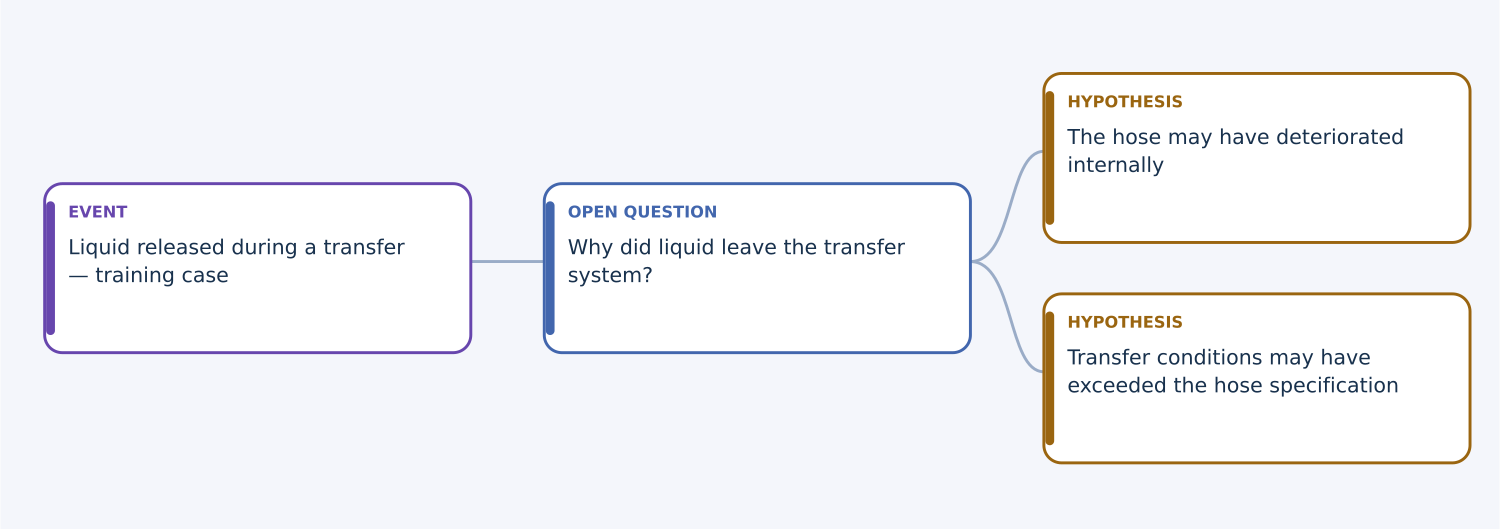
Illustrative training tree generated from the current diagram component. These branches are hypotheses, not established operational findings.
01
Choose the point where the explanation branches. Select the finding that needs another contributing explanation.
02
Use Add parallel cause. This creates a finding beside the selected one, with the same parent. Use Ask why when you want a deeper child explanation instead.
03
Enter the additional explanation. Set its status, category, rationale and evidence independently. One supported branch does not establish the others.
04
Apply and save. Adding parallel findings changes the investigation method to Why Tree. Expand to Why Tree can also mark the transition explicitly.
05
Inspect the tree. Select a card to edit it. Scroll the diagram for wide or deep investigations. Use Export Why Tree for an SVG copy.
A finding has one parent. The application rejects circular relationships. Deleting a finding also removes the findings below it, so inspect the branch before confirming deletion.
Back to contents ↑PDF page 12
SENTINEL INVESTIGATE
Confirm findings and create actions
A supported finding needs a reasoned explanation and evidence. An action records what somebody must do about a finding or gap.
Finding status | Use it when |
|---|---|
Open question | You have a material question that has not been answered. |
Hypothesis | You have a possible explanation that still needs testing. |
Supported | You have a rationale and linked supporting evidence for the finding. |
Refuted | You consider the explanation contradicted; retain the reasoning and evidence. |
01
Open the finding. Read its wording, parent, rationale and linked evidence together.
02
Check the supporting basis. To select Supported, provide a rationale and at least one non-disputed evidence reference. Assess the evidence yourself; the software checks the fields, not the truth of the claim.
03
Apply and save. If the form rejects the change, check the evidence links and rationale. An item marked Disputed cannot be the only supporting evidence.
04
Create a corrective action. Use + Corrective action beside the finding. The form links the action to that finding.
05
Make the outcome clear. Enter a title, responsible owner, due date, priority and required outcome. Keep the status Open or In progress while work remains.
06
Close only with completion evidence. When work is done, enter evidence before selecting Closed. Use Assure later to review whether the action achieved its intended result.
Actions remain in their original workspace. Transferring a finding to another workspace does not automatically transfer its corrective actions.
Back to contents ↑PDF page 13
SENTINEL BOWTIE
Understand the bowtie terms
The bowtie separates causes of loss of control from the harm that may follow. Clear terms make the diagram useful.
Term | Plain meaning | Training example |
|---|---|---|
Hazard | The source of potential harm. | Flammable liquid held under pressure. |
Top event | The point at which control over that hazard is lost. | Loss of primary containment. |
Threat | A cause that could lead to the top event. | Transfer hose ruptures. |
Consequence | The harm or loss that may follow. | Released liquid ignites and injures personnel. |
Preventative barrier | A measure intended to prevent a threat leading to the top event. | A justified hose integrity control. |
Mitigative barrier | A measure intended to limit the consequence after the top event. | A justified emergency isolation function. |
Degradation factor | A condition that can weaken a particular barrier. | The examination method misses internal deterioration. |
Degradation control | A measure addressing that weakening condition. | An appropriate examination method and replacement programme. |
Read the main pathway
Read from left to right: threat, preventative barriers, top event, mitigative barriers and consequence. The hazard provides the context above the top event. Degradation factors and their controls connect to individual barriers through separate branches.
Avoid using the injury as the top event. Avoid calling a general policy an effective barrier without explaining the specific protective function, its performance standard and how it will be verified.
Back to contents ↑PDF page 14
SENTINEL BOWTIE
Build pathways and barriers
Create the context and pathways before attaching barriers. Use the diagram and register together.
01
Choose Sentinel Bowtie. Open Bowtie studio, then Assessment details. Enter the hazard and top event; apply the form.
02
Add a Threat. Name the initiating cause and explain how it could lead to the top event. Repeat for other distinct threats.
03
Add a Consequence. Describe the potential harm. Select initial and residual likelihood and severity ratings using your approved organisational criteria.
04
Add a Barrier. Enter its name and choose Preventative or Mitigative. Select the matching threat or consequence pathway.
05
Describe its protective function. Choose Engineered, Human or Organisational, assign an accountable owner, and state a measurable performance standard.
06
Set its initial assurance information. Record the declared condition, verification due date, criticality and evidence basis. Use Unknown when condition has not been established.
07
Apply and save. Inspect the card on the correct side of the diagram. Open Barrier register to check owners, conditions and dates across the model.
A control appearing on several pathways
Each barrier record belongs to one pathway. If the same physical control is represented on several pathways, use clear common-asset references. Do not treat duplicate representations as independent protection layers. LOPA fields are for competent analysts; leave PFD blank and independence unticked unless justified.
Use the zoom controls to inspect larger bowties. Selecting a card opens its properties; selecting a hazard or top-event card opens the assessment details.
Back to contents ↑PDF page 15
SENTINEL BOWTIE
Add degradation protection
A barrier may exist but be weakened. Record both the weakening condition and what controls that condition.
01
Select the relevant barrier. Confirm the barrier's intended function and the evidence it relies on.
02
Choose + Degradation factor. In Bowtie studio or Barrier register, name the factor and select the barrier that may be weakened.
03
Explain the mechanism. Describe how the condition could reduce effectiveness. For example: an external examination may not identify internal hose deterioration.
04
Apply the factor. It becomes available as a parent for a degradation control.
05
Choose + Degradation control. Select the factor being addressed. Describe the protection, accountable owner, condition, standard and next verification date.
06
Apply and save. Inspect the dashed connections: barrier to factor, then factor to degradation control.
07
Verify the degradation control in Assure. It appears among the controls available for verification. Record actual evidence, not just its intended existence.
Relationship | Question it answers |
|---|---|
Barrier → degradation factor | What could weaken this barrier? |
Degradation factor → degradation control | What addresses that specific weakening condition? |
An unprotected factor creates an early warning. A failed degradation control does not automatically prove that the parent barrier has failed, but it exposes a concern that needs investigation. The software does not invent a failure probability.
Deleting a factor removes its degradation controls and their verifications. Deleting a threat or consequence also removes its dependent diagram elements. Read the confirmation before proceeding.
Back to contents ↑PDF page 16
CONNECT INVESTIGATE AND BOWTIE
Prepare a finding transfer
A proposal carries a supported finding to the target team for a decision. Preparing it does not change the bowtie.
01
Check access and readiness. Investigate and Bowtie must both be enabled. You need editing rights in the source and owner, editor or reviewer access in the target. The finding must be Supported.
02
Save the source workspace. Unsaved changes block proposal preparation. Confirm that the current finding and evidence are the versions you intend to submit.
03
Choose Propose to Bowtie. Use the button beside the supported finding in Investigations.
04
Choose the target. Select an existing workspace, or enter a New bowtie title. A new target is owned by you; a separate reviewer will need membership before applying the proposal.
05
Select Apply changes to continue. The next dialogue asks how the finding should be represented in the target.
06
Choose the element and mapping. Select Threat, Consequence, Barrier, Degradation factor, Degradation control, Hazard or Top event. Choose Create a new element or Link to an existing element.
07
Complete the target details. Check the proposed label. For a barrier, choose its function and existing parent pathway. For a factor or degradation control, choose its existing parent. New consequences need explicit ratings.
08
Submit with Apply changes. The proposal is stored as Pending. Use Bowtie transfers to inspect its status and ask an authorised target reviewer to examine it.
Classify the meaning of the finding. Do not turn every cause into a threat automatically. New controls start with Unknown condition and need their owner, standard and verification arrangements completed.
Back to contents ↑PDF page 17
CONNECT INVESTIGATE AND BOWTIE
Review and apply a transfer
A separate person checks the evidence and mapping before the target changes.
01
Sign in as the target reviewer. You must be a target owner or reviewer, be able to read the source workspace, and be different from the person who proposed the transfer.
02
Open the target workspace. Select Bowtie transfers and use Refresh to retrieve the latest proposals.
03
Select Inspect proposal. Read the finding, rationale, source revision, ancestor findings, evidence references and proposed element type. Examine the original evidence through your normal document controls.
04
Check the destination. Confirm that the label, existing parent or linked target record matches the intended risk pathway. Save or reload other target changes before making the decision.
05
Select Review. Choose Reject / request revision or Apply mapping and reset target review. Enter a clear decision rationale.
06
Select Apply changes. A successful application records the decision and target record, retains the source snapshot, and returns the target workspace to Draft.
07
Complete the target assessment. Inspect the new or linked element in Bowtie. Add missing owner, standard and verification details through an authorised editor. Follow the normal workspace approval process afterwards.
If the application blocks the transfer
A changed target revision requires a reload and renewed inspection. If the source finding, incident, ancestors or linked evidence changed after submission, reject the outdated proposal and ask for a fresh one. An applied proposal cannot be applied again.
A rejected proposal keeps its decision note and leaves target content unchanged. Viewing transfer evidence later still requires access to both workspaces.
Back to contents ↑PDF page 18
SENTINEL ASSURE
Build a control register
Assure can verify bowtie controls or run as an independent control programme.
01
Choose Sentinel Assure. Open Control register. It shows bowtie barriers, degradation controls and standalone assurance controls in the current workspace.
02
Decide whether a new record is needed. If the control already exists in Bowtie, use that record. Add a standalone control only when appropriate; avoid unnecessary duplicates.
03
Select + Standalone control. Enter a precise control name and accountable owner.
04
Choose the type and criticality. Select Engineered, Human or Organisational. Mark Safety-critical control only where your organisation has designated it as such.
05
Describe the performance standard. State what the control must achieve, how it will be checked and the acceptance criteria. Refer to an approved source where one exists.
06
Record condition, due date and scope. Keep unestablished condition as Unknown. Set the next verification date from the approved programme and explain boundaries or dependencies.
07
Apply and save. The control is now available under Control assurance for a verification record.
A useful performance standard
A standard describes a testable protective outcome, not merely a document title. For a training machine-guard example, record a requirement to demonstrate the approved stopping behaviour and restart prevention using the specified procedure. The actual criteria must come from the authorised machine assessment and instructions.
If Bowtie editing is disabled, Assure can still verify existing bowtie controls. Changes to the underlying barrier design or standard need the relevant module and editing rights. The latest verification's next-due date can determine currency without rewriting that barrier.
Back to contents ↑PDF page 19
SENTINEL ASSURE
Record a verification
Record the result of an actual check against a control's performance standard.
01
Open Control assurance. Select + Verification and choose the control being verified.
02
Name and date the check. Use a recognisable title and the date the verification took place. Future-dated verifications are rejected.
03
Choose the finding. Select Pass, Partial, Fail or Not checked. Base it on the standard and the evidence, not the desired result.
04
Identify the verifier. Enter the inspector or verifier and the evidence reference. Explain the finding and any limitations; both identity and evidence are required.
05
Enter Next due date when appropriate. Use the approved assurance programme. This is a schedule, not a prediction of when the control will fail.
06
Apply and save. Return to the register and confirm the displayed condition. Review Early warnings and raise actions where required.
Verification result | Displayed control condition |
|---|---|
Pass | Effective |
Partial | Degraded |
Fail | Failed |
Not checked | Unknown |
The latest dated verification determines the displayed condition. On the same date, the latest server-recorded timestamp takes priority; exact ties use the later record in the collection. Without a verification, the declared condition is shown.
If a check identifies an operational problem, follow your organisation's response arrangements. Entering Fail in Sentinel is a record; this version does not send an emergency alert or stop equipment.
Back to contents ↑PDF page 20
SENTINEL ASSURE
Review action effectiveness
A completed task is not necessarily an effective solution. Record whether the intended outcome was achieved.
01
Check the action record. In Actions, confirm the required outcome, responsible owner and completion evidence. Close the action only when the work is complete.
02
Open Effectiveness reviews. Closed actions without a review appear in Actions awaiting an effectiveness review. Use + Review beside one, or + Effectiveness review to select an action.
03
Define the review. Enter the title, linked corrective action, reviewer and a non-future review date.
04
State the criteria. Explain what would demonstrate effectiveness and the period or conditions observed. Avoid a conclusion based only on the work having been completed.
05
Record the outcome and evidence. Choose Not yet assessed, Effective, Partly effective or Ineffective. A conclusive result requires supporting evidence.
06
Plan further work. Partly effective and Ineffective results require a follow-up plan. Add a Next review date if another assessment is needed.
07
Apply and save. Check the review against the action. Create a separate follow-up action where somebody must do further work; a note alone does not create one.
What the warning rules show
A closed action without an effectiveness review is flagged. A Partly effective or Ineffective review produces a high-priority warning. A due follow-up review can also be flagged when overdue. Read the review result itself: merely having a review record is not proof of effectiveness.
The reviewer field is descriptive text. It does not automatically assign a company portal reviewer role or enforce a separate person for this type of record. Follow your organisation's independence requirements.
Back to contents ↑PDF page 21
RISK SCREENING AND FOLLOW-UP
Use ratings and early warnings
Use these views to find matters needing attention. They do not replace a competent assessment.
Risk ratings: a beginner's sequence
01
Open Sentinel Bowtie → Risk ratings. Read the listed consequences and their initial and residual likelihood and severity.
02
Check the basis for each rating. Use the organisation's definitions and record the rationale in the assessment scope or consequence description.
03
Edit a consequence when justified. Select its title, choose all four 1-5 ratings, apply and save. Confirm its position in the residual matrix.
The displayed score is likelihood multiplied by severity. The fixed illustrative bands are 1-5, 6-14 and 15-25. These ordinal numbers are not probabilities, and the bands do not establish risk acceptance.
Early warnings: act on the reason
Open Early warnings in Bowtie or Assure. Read the priority, finding and evidence/reason. Rules highlight failed or degraded controls, absent owners or standards, missing evidence, overdue verifications/actions, unprotected pathways and uncontrolled degradation. Repeated failed checks can also trigger a warning.
Use Create action beside a warning, complete the owner, due date and required outcome, then apply and save. Six-month verification tables show recorded counts. More failures may reflect more inspections; counts are not failure probabilities.
LOPA requires the scenario, layers, sources, assumptions and dependencies to be assessed. The software withholds results when its configured evidence or relationship checks fail. It does not prove independence, determine a SIL or perform a complete quantitative risk assessment.
Back to contents ↑PDF page 22
SHARED WORKSPACE
Collaborate and approve work
Agree who edits, who reviews and when the team should reload the saved workspace.
Add team members: workspace owner
Open Project settings → Manage members. Enter an existing Sentinel user's company portal ID and workspace role on each line, for example 12,editor and 15,reviewer. Use editor, reviewer or viewer. Select Apply changes. The submitted list replaces the previous list, so retain anyone who still needs access.
Discuss a record
Save ordinary content, open Team discussion, select Add comment, choose a related record or the whole workspace, and enter the comment. Apply changes sends it to the server. Comments retain the author's user ID and UTC time and cannot be edited or deleted through the interface. The connected discussion refreshes while open and idle; Refresh also requests updates. Viewers can read but cannot comment.
Submit and approve a workspace
01
Save and check the content. Complete the required context and review evidence, open actions and warnings. Open Project settings.
02
Select Submit for review. Enter a Review note and rationale, then Apply changes. The status changes from Draft to In review.
03
Have a separate reviewer examine it. An authorised reviewer reads the records and supporting material, then selects Approve or Return to draft and records a rationale.
04
Check the resulting status. Approval is a human decision. The workspace owner and last content editor cannot approve the current workspace. Later content saves or applied transfers reset it to Draft.
PDF page 23
SHARED WORKSPACE
Export and import records
Choose the format for your purpose. A portable record export is not a full server backup.
01
Open the intended workspace. Check its title and whether you have unsaved changes. Exports include the current working copy.
02
Select Export. Choose a format from the dialogue. Save the download in an authorised location.
03
For a PDF report, choose Printable report. The download is HTML. Open it in a browser, select Print / Save as PDF, review the preview and save the PDF.
04
To import, select Import assessment JSON as a new draft. Choose a valid Sentinel JSON file, no larger than 2 MB. Import creates a new workspace rather than overwriting the original.
Format | Included / intended use |
|---|---|
JSON | Portable workspace records and relationships. Supports schema 2 and imports schema 1. Excludes server permissions, history, discussions, transfers, telemetry, alerts and forecast observations/reviews. |
Bowtie SVG | Scalable bowtie diagram. Use Export Why Tree in Investigations for that diagram instead. |
Control register CSV | Barriers, degradation factors, degradation controls and standalone assurance controls. Not the entire suite database. |
Printable HTML / PDF | Workspace details, diagrams, module records and warnings. On company portal it also retrieves accessible discussion and transfer provenance. |
Imported JSON starts as a Draft owned by the importing user. It does not inherit approvals or membership, and it does not recreate server transfer history. For recovery of the whole installation, the administrator must back up the company portal database and files.
Records may contain sensitive operational information. Apply your organisation's normal access, storage and sharing arrangements to downloaded files.
Back to contents ↑PDF page 24
WRITING AND OPTIONAL AI
Use AI drafting assistance
Use drafting help to improve clarity while retaining control of every finding and decision.
Use the AI assistant on company portal
01
Open a saved workspace. You need owner, editor or reviewer access. The administrator must have configured the OpenAI connection.
02
Select AI assistant. Read the connection notice. Enter a question and the specific context you want processed.
03
Inspect the text before sending. Insert hazard and top event can add those fields for inspection. Only the text submitted in the dialogue is sent; the whole workspace is not automatically included.
04
Confirm authorised processing. Tick the consent box only when you are authorised to send that information to the configured external service.
05
Select Generate draft suggestions. Read the result, check assumptions and verify useful claims against evidence.
06
Use useful material manually. Copy or rewrite the relevant suggestion into the appropriate record. Apply the form and save through the usual workflow.
AI cannot approve work, silently edit records or establish effectiveness. The integration does not activate predictive modelling. It limits requests to approximately one per minute per user; that is not a hard spending cap.
If AI is not connected, the rest of the suite still works. Ask the administrator to configure it; do not put API keys in a prompt, report, Elementor page or ordinary record. The practice workspace cannot make AI requests.
Back to contents ↑PDF page 25
GUIDED PRACTICE
Complete the training exercise
Use fictional material in a clearly labelled training workspace. The aim is to learn the workflow, not to establish a real cause.
01
Create TRAINING - Transfer hose review. Use Investigate as the focus, set the site to Demonstration site, and enter an owner, scope and review date. Save. See page 6.
02
Create a hypothetical event. Use TRAINING - Liquid released during a transfer, method 5 Whys, status Investigating. Add two or three timeline events with clearly illustrative UTC times. See pages 7 and 9.
03
Create one training evidence record. Title it TRAINING ONLY - Fictional hose examination. Reference it as EXERCISE-E01, state explicitly that it is invented for practice, and describe what the exercise assumes. See page 8.
04
Build and branch the causal explanation. Add the first question, then a hypothesis about internal deterioration. Add a parallel hypothesis about service conditions. Keep uncertainty visible. See pages 10-11.
05
Support only the exercise's assumed finding. Link EXERCISE-E01 to the deterioration finding and explain the fictional basis. Leave the alternative Hypothesis until assessed. Add a linked action to review the examination programme. See page 12.
06
Build the training bowtie context. In the same workspace, define the hazard and top event. Add the appropriate threat/consequence pathways, with deliberately chosen training ratings. See pages 13-14.
07
Practise a reviewed mapping on company portal. Propose the supported finding as a degradation factor on an existing training barrier, or choose another justified mapping. A different authorised person must review it. See pages 16-17.
08
Continue in Assure. Complete a control standard, enter a clearly fictional verification record and create a fictional action-effectiveness review. Save and export a printable report. See pages 18-20 and 23.
In the practice workspace, practise the records and exports but stop before server submission or approval. Do not use the exercise to represent a live operational assessment.
Back to contents ↑PDF page 26
HELP AND RECOVERY
Resolve common problems
Read the message before retrying. Preserve unsaved work before reloading or asking somebody else to change the workspace.
What you see | What to check or do |
|---|---|
Sign-in or access message | Sign in with the correct company portal account. Ask the administrator for a Sentinel role and the owner for workspace membership. |
A module or edit button is missing | Check enabled modules and your workspace role. Reviewers and viewers normally cannot edit records. |
Apply changes worked, but edits disappeared | Apply schedules a save when connected. Check the saved revision and any connection or conflict message. Save changes retries a pending save. Practice workspaces need explicit Save changes. |
Supported finding rejected | Provide a rationale and at least one linked, non-disputed evidence reference from the same investigation. |
Wrong evidence or parent choices | Close the form, select the intended investigation, then reopen it. For bowtie mappings, create the parent pathway first. |
Another user changed the assessment | Compatible edits merge automatically. For overlapping edits, open Resolve conflict and inspect both values. Export the working copy before reloading if the conflict cannot be resolved. |
Transfer cannot be applied | Check a separate target reviewer, source access, latest target revision and unchanged source evidence. Reject an outdated proposal and prepare a fresh one. |
Verification rejected | Enter a non-future date, an inspector and evidence. Confirm that the selected control still exists. |
Action or effectiveness review rejected | Closing requires completion evidence. A conclusive effectiveness result needs evidence; an unsuccessful result also needs follow-up. |
AI unavailable or request rejected | Ask the administrator to check configuration, model access, billing and server connectivity. Wait a minute between requests. |
Report does not download | Read the error message and check access/connectivity. A server failure stops a report that needs discussion or provenance data. |
PDF page 27
OWNER CHECKLIST
Set up your company workspace
Complete these steps before inviting the team to use operational records.
01
Confirm the company. Check the COMPANY selector and your workspace title. Ask the system administrator to configure an annual company licence and allocate seats before adding workspace members.
02
Define the scope. Enter the site, owner, boundaries and review date. Keep training and operational work clearly distinct.
03
Add the team. Use Project settings → Manage members. Enter company user IDs and editor, reviewer or viewer roles. Retain every person who still needs access.
04
Assign an independent reviewer. The owner and last content editor cannot approve the workspace. A transfer reviewer also needs source access.
05
Configure email alerts when ready. The owner selects recipients and alert types in Email alerts. The administrator must configure authenticated sending from sentinel@safetyman.net and the scheduled worker.
06
Add sensor feeds only when specified. Enter the approved units, thresholds and freshness. Keep an unused feed disabled. Give its one-time credential only to the authorised gateway operator.
07
Check data collection. Open Forecasting. Daily observations start with the scheduled worker. New workspaces have no statistical history and cannot have a validated forecast.
08
Test your workflow. Use clearly fictional records, separate user accounts and a test recipient to confirm saving, review, reports and notifications. Then use the organisation's approved operating process.
PDF page 28
QUICK REFERENCE
Glossary and daily checklist
Keep this page nearby when you start using the suite.
Term | Meaning in this release |
|---|---|
Workspace / assessment / project | The saved container holding your records, membership and review status. |
Finding | A question or causal explanation within an investigation. |
Parent / child / sibling | A finding being explained / an explanation below it / another explanation with the same parent. |
Evidence reference | A record pointing to source material, not an uploaded attachment. |
Barrier / control | A protective measure; its intended function must be clear and verifiable. |
Performance standard | The measurable protective requirement and acceptance criteria. |
Verification | A recorded check against a control's standard. |
Effectiveness review | A check of whether an action achieved its intended outcome. |
Provenance | The retained origin, evidence snapshot and review history of a transferred finding. |
Revision conflict | The saved workspace changed after your copy was loaded. |
PFD / IPL / LOPA | Probability of failure on demand / independent protection layer / layer of protection analysis. |
Before you finish a session
Confirm the workspace and investigation titles. Review unsaved changes. Apply open forms and Save changes. Check owners, dates and evidence. Leave hypotheses clearly labelled. Record follow-up actions. Preserve required exports in an authorised location. Sign out on shared computers.
Guide basis and further help
Prepared from the supplied Sentinel Suite 1.2.0 source, interface labels, user guide and verification record. Automated checks do not replace live installation acceptance or independent assessment of the investigation method. All exercise material in this guide is fictional.
Hostinger: company portal configuration file
OpenAI: API and ChatGPT billing
© 2026 Safetyman International. All rights reserved.
Back to contents ↑PDF page 29
ANNOTATED INTERFACE REFERENCE
Create a workspace
Use + New in the top bar. Full instructions: page 6.
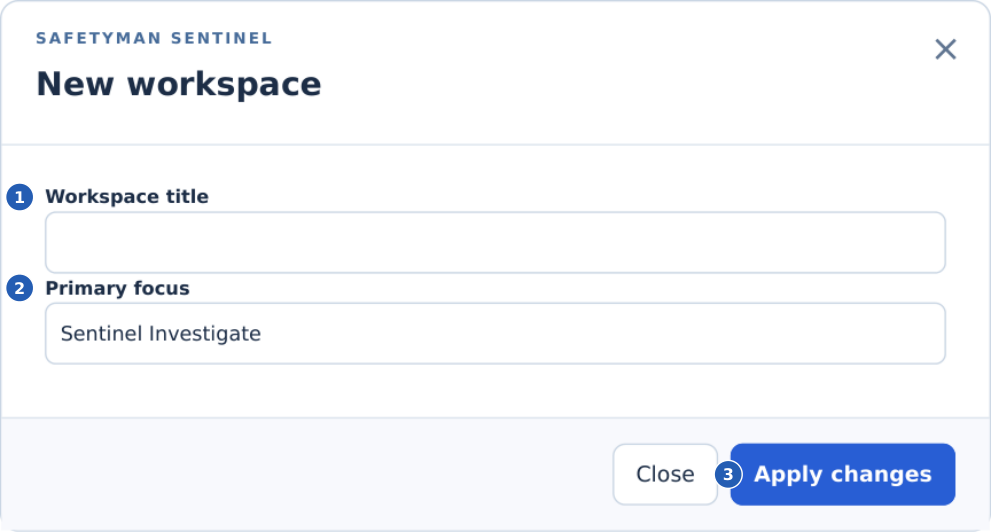
1. Give the workspace a clear name. Mark practice work TRAINING so it cannot be confused with operational work.
2. Choose the primary focus. Other enabled modules remain available within the same workspace.
3. Apply creates the workspace. Use Project settings next to add its scope, owner and review date.
Local reference view generated from the v1.2.0 training interface. Form controls are rendered statically for this guide; browser and Hostinger appearance may differ. This is not a live-site screenshot.
What happens next
Use Investigate to create the event, Bowtie to define the risk context, or Assure to add the first standalone control. The workspace selector keeps the saved container visible while you change modules.
Back to contents ↑PDF page 30
ANNOTATED INTERFACE REFERENCE
Evidence: source and reliability
Select the case in Evidence register before adding or editing evidence. Full instructions: page 8.
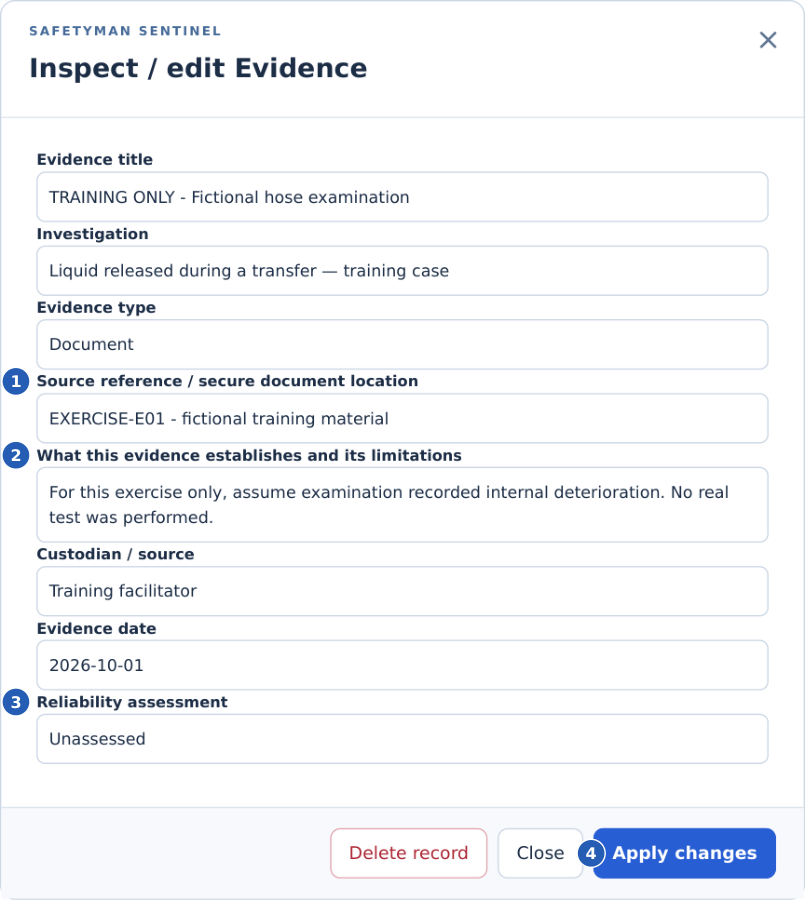
1. Use an identifiable document or source reference. The actual attachment remains in your controlled document store.
2. State what the source establishes and what it does not. The example is deliberately labelled fictional.
3. Assess reliability; the default Unassessed label is not an endorsement.
4. Apply the form, then Save changes in the top bar.
Local reference view generated from the v1.2.0 training interface. Form controls are rendered statically for this guide; browser and Hostinger appearance may differ. This is not a live-site screenshot.
Back to contents ↑PDF page 31
ANNOTATED INTERFACE REFERENCE
Finding: parent, status and evidence
Select a finding title or Why Tree card. Full instructions: pages 10-12.
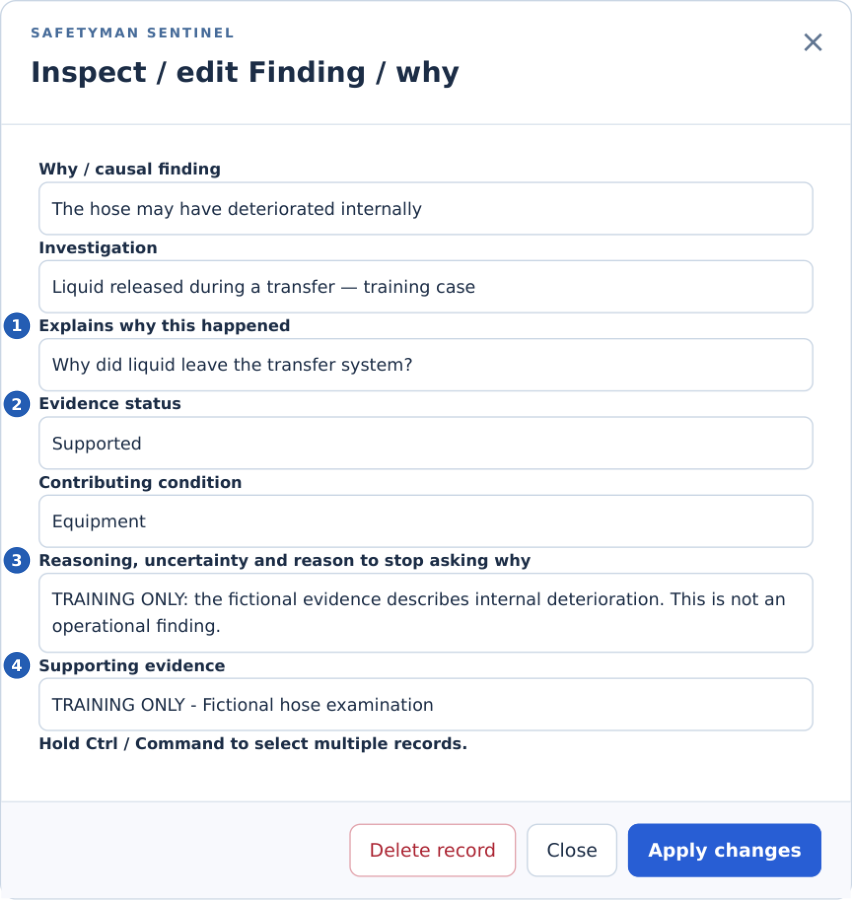
1. The parent field places the finding in its causal chain. A parallel cause shares the same parent.
2. Supported is a human judgement and needs a rationale plus non-disputed evidence.
3. Explain the inference and uncertainty. The example remains visibly a training assumption.
4. Link registered evidence from this investigation. Apply, then save the workspace.
Local reference view generated from the v1.2.0 training interface. Form controls are rendered statically for this guide; browser and Hostinger appearance may differ. This is not a live-site screenshot.
Back to contents ↑PDF page 32
ANNOTATED INTERFACE REFERENCE
A degradation branch: close-up
This enlarged excerpt shows a real diagram branch from the supplied training model. Full instructions: pages 13-15.
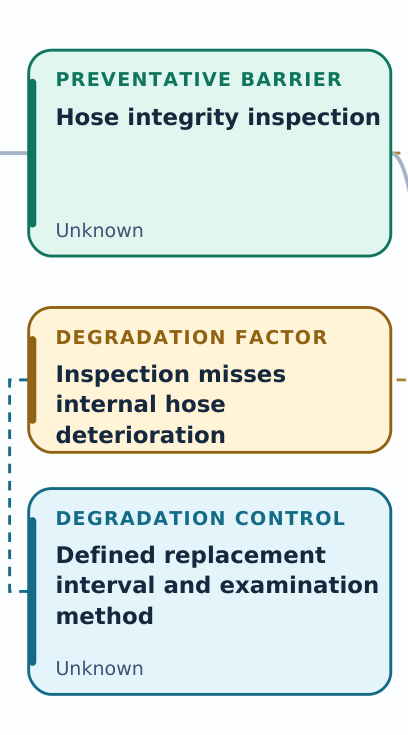 | 1. Preventative barrier Hose integrity inspection is placed on the threat pathway. Its training condition is Unknown. 2. Degradation factor The factor describes how the barrier could miss internal deterioration. The dashed connection ties the factor to that barrier. 3. Degradation control The control addresses that specific factor. It has its own owner, standard and verification evidence. |
In the application, select a diagram card to inspect its fields. Select Export SVG when you need the complete scalable bowtie, including the other pathways and the mitigative side.
Enlarged local diagram render from v1.2.0. Training content only; not a capture of a live Hostinger assessment.
Back to contents ↑PDF page 33
ANNOTATED INTERFACE REFERENCE
Transfer: choose the target
Save the supported finding before selecting Propose to Bowtie. Full instructions: page 16.
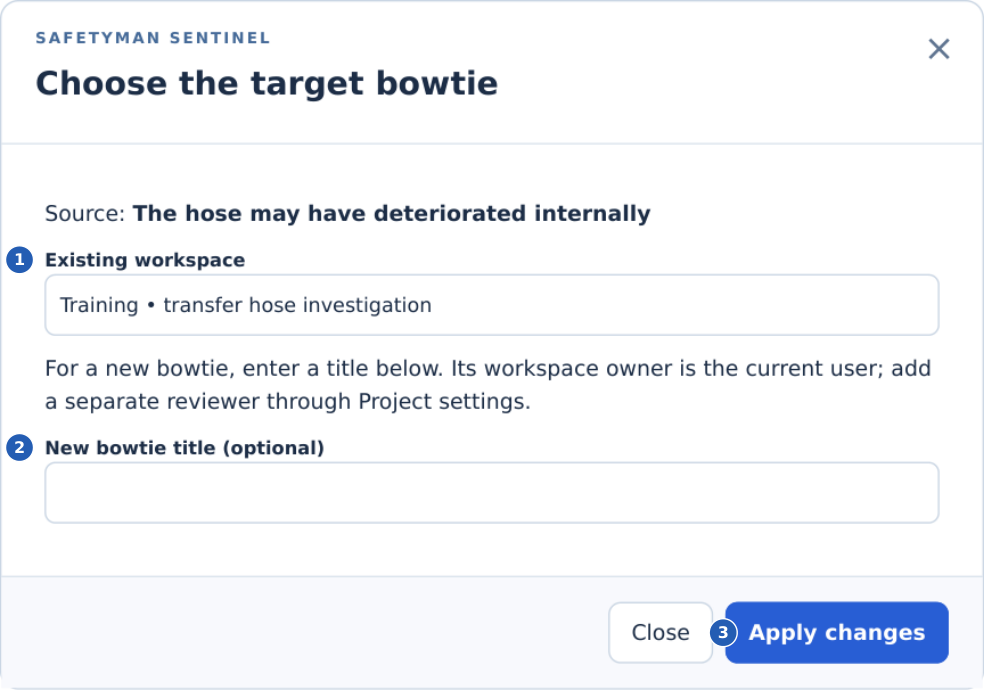
1. Choose an accessible existing target, including the current workspace when appropriate.
2. Alternatively, enter a title to create a new bowtie workspace. Its creator becomes the owner.
3. Apply continues to the mapping dialogue shown on the next page. It does not apply a finding to the bowtie.
Local reference view generated from the v1.2.0 training interface. Form controls are rendered statically for this guide; browser and Hostinger appearance may differ. This is not a live-site screenshot.
Back to contents ↑PDF page 34
ANNOTATED INTERFACE REFERENCE
Transfer: choose the mapping
Classify what the finding means in the target model. Full instructions: pages 16-17.
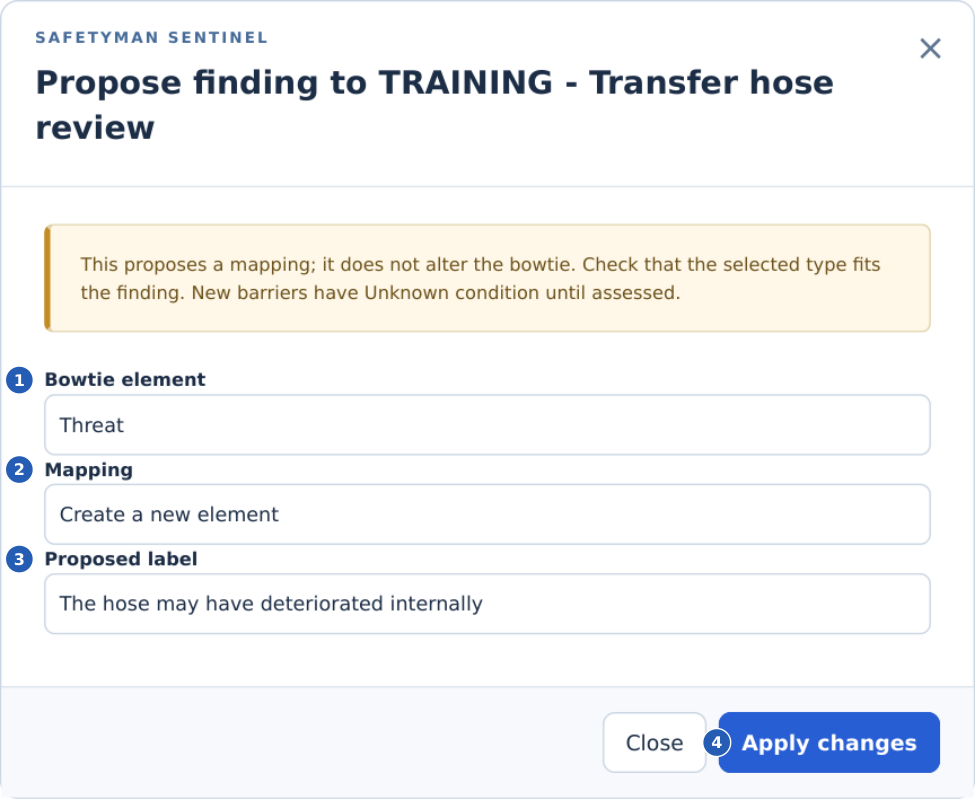
1. Choose the right element type. This example proposes a Threat; a different finding may belong to a barrier or degradation branch.
2. Create a new element, or link to an existing element. Parent selectors appear when the chosen type requires them.
3. Check the proposed wording. The source evidence and rationale remain available for review.
4. In company portal, Apply submits a Pending proposal. A separate reviewer applies or rejects it later; the practice workspace cannot submit.
Local reference view generated from the v1.2.0 training interface. Form controls are rendered statically for this guide; browser and Hostinger appearance may differ. This is not a live-site screenshot.
Back to contents ↑PDF page 35
ANNOTATED INTERFACE REFERENCE
Verification: record the check
Open Sentinel Assure → Control assurance → + Verification. Full instructions: page 19.
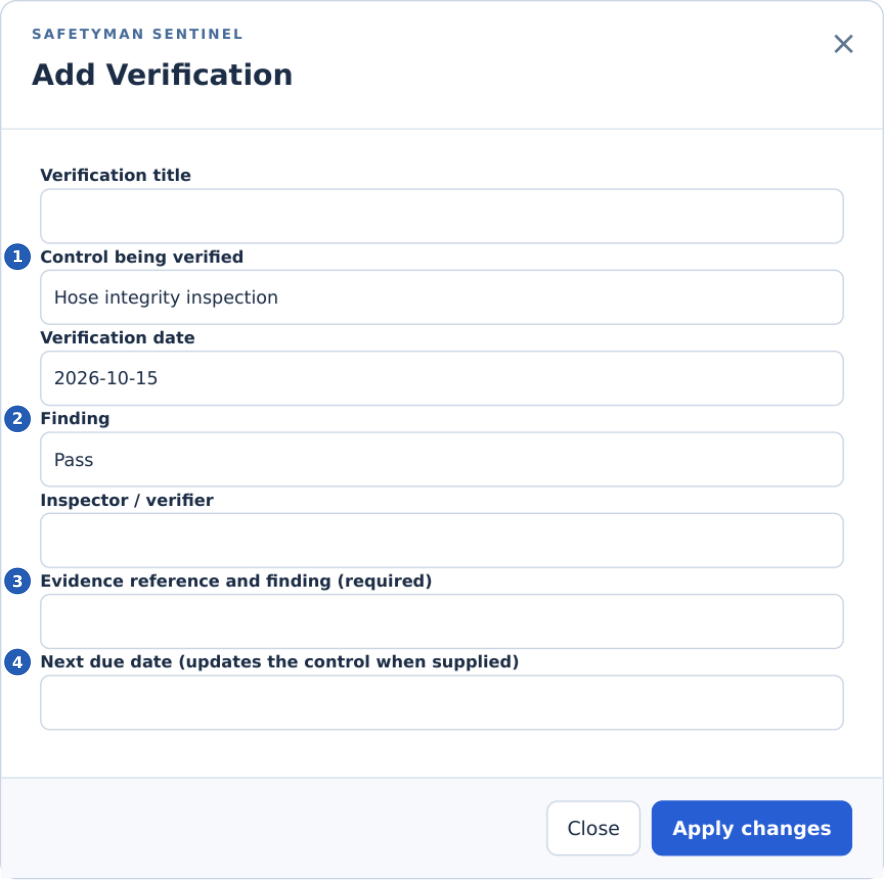
1. Select the actual control checked, then enter the verification date and a clear title.
2. Choose Pass, Partial, Fail or Not checked from the evidence. The initial displayed choice is not a test result.
3. Enter the verifier and evidence reference, with an explanation of the result. These fields are required.
4. Set the next check from the approved programme. Apply the form, then Save changes.
Local reference view generated from the v1.2.0 training interface. Form controls are rendered statically for this guide; browser and Hostinger appearance may differ. This is not a live-site screenshot.
Back to contents ↑PDF page 36
ANNOTATED INTERFACE REFERENCE
Effectiveness: check the outcome
Open Sentinel Assure → Effectiveness reviews. Full instructions: page 20.
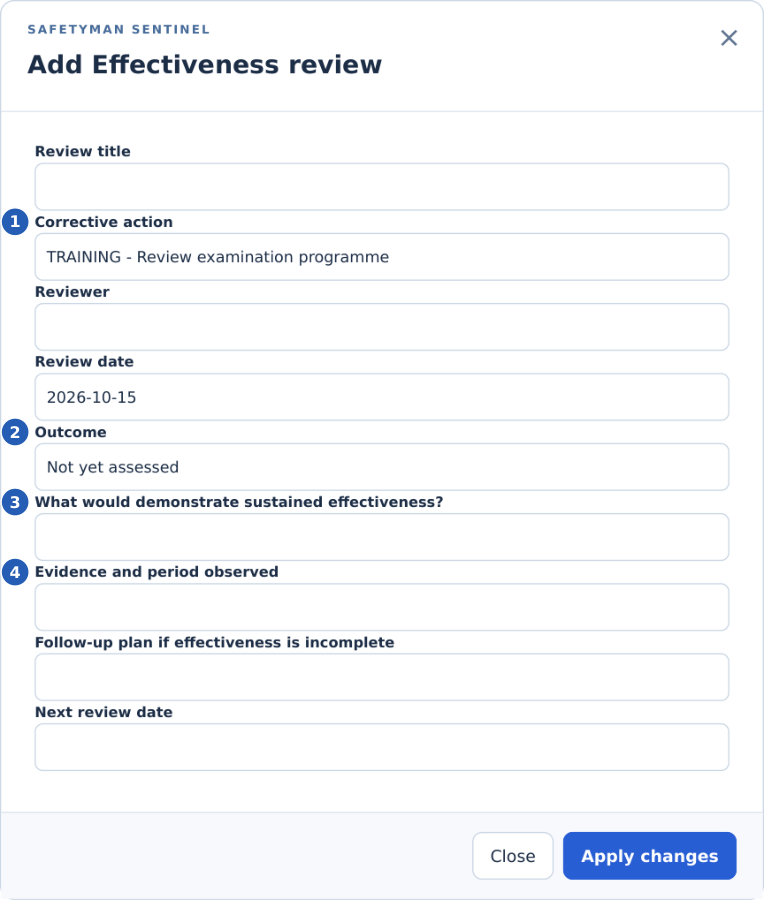
1. Link the review to the action whose outcome you are checking. Name the reviewer and review date.
2. Not yet assessed is not a positive conclusion. Select a conclusive outcome only when justified.
3. Define what success would look like and the criteria used to assess it.
4. Record the evidence and observation period. An unsuccessful outcome also needs a follow-up plan.
Local reference view generated from the v1.2.0 training interface. Form controls are rendered statically for this guide; browser and Hostinger appearance may differ. This is not a live-site screenshot.
Back to contents ↑PDF page 37
ANNOTATED INTERFACE REFERENCE
Export: choose the right file
Select Export in the top bar. Full instructions: page 23.
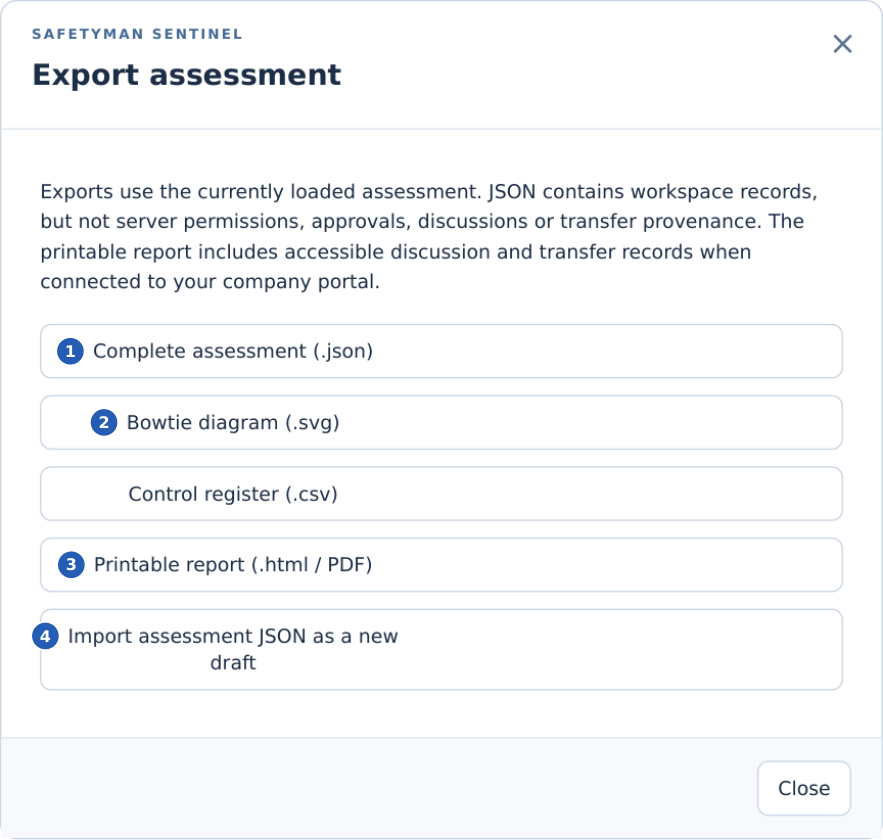
1. Use JSON for portable workspace records. It is not a database backup and omits server permissions and provenance.
2. Use SVG for the bowtie. The separate Export Why Tree button is in Investigations.
3. Download HTML, open it in a browser, then choose Print / Save as PDF. Inspect the output before sharing.
4. Import creates a new Draft; it does not overwrite the current workspace.
Local reference view generated from the v1.2.0 training interface. Form controls are rendered statically for this guide; browser and Hostinger appearance may differ. This is not a live-site screenshot.
Back to contents ↑PDF page 38
ANNOTATED INTERFACE REFERENCE
AI: inspect before sending
Select AI assistant in a saved company portal workspace. Full instructions: page 24.
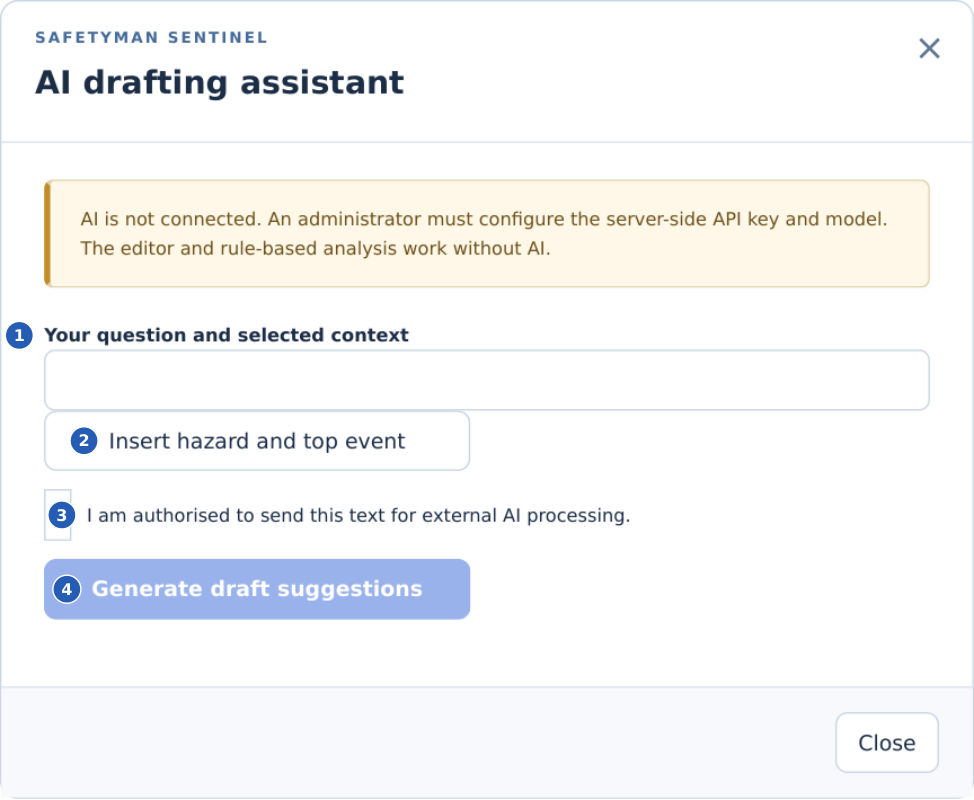
1. Enter only the question and context you intend to send to the external service.
2. This button inserts those two fields for inspection. It does not send the whole workspace.
3. Confirm that you are authorised to process the selected text externally.
4. This control remains disabled in the practice workspace shown here. company portal needs a configured API key, model and account access.
Local reference view generated from the v1.2.0 training interface. Form controls are rendered statically for this guide; browser and Hostinger appearance may differ. This is not a live-site screenshot.
Back to contents ↑PDF page 39
COMPANY PRIVACY
Work within the correct company
Company membership and workspace permission are both required.
01
Sign in with your own account. Use the assigned login. Do not share accounts; the history must identify the person making a change.
02
Choose the company. Use COMPANY in the top bar. Only authorised companies appear. Selecting another company clears the previous workspace from the interface.
03
Choose the workspace. Use ASSESSMENT. A company membership does not automatically grant access to every workspace in that company.
04
Ask for the access needed. The system administrator manages company membership. A workspace owner manages that workspace's editor, reviewer and viewer roles.
05
Keep transfers inside the company. Investigation-to-bowtie transfers cannot cross a company boundary, even where one person belongs to both companies.
06
Handle exports as separate copies. Downloaded files are outside the application's access controls. Store and share them only through authorised arrangements.
Access layer | What it means |
|---|---|
Application account | The user can open Sentinel and has an assigned application role. |
Company membership | The user is authorised for the client company. |
Workspace role | The user can perform the specific reading, editing or reviewing tasks granted for a workspace. |
System administration | Trusted hosting/application operators can administer and access companies. This is not a separate encrypted installation for each customer. |
PDF page 40
COLLABORATION
Edit together without losing work
Changes synchronise after forms are applied. Text is not streamed character by character.
01
Open the same company workspace. Each participant signs in with their own account. Editors need a suitable workspace role.
02
Check the connection bar. It shows connectivity and recently active colleagues. Presence expires when a session stops reporting; it is an activity indicator, not a record lock.
03
Edit a record and select Apply changes. The connected suite schedules a save. Watch the saved revision indicator. Save changes can send pending edits immediately.
04
Allow compatible changes to merge. Different fields or independently created records can be combined against the saved base revision. The resulting workspace is validated and its approval returns to Draft.
05
Resolve an overlapping edit. If two people changed the same field differently, select Resolve conflict. Inspect My value and Saved value. Choose one for each conflict, then Apply changes.
06
Check relationships after resolving. Deleted records and dependent links are revalidated. A conflicting deletion may require exporting, reloading and deliberately reapplying the intended changes.
07
Recover carefully from a connection problem. Keep the tab open. Retry save, or Export my working copy before reloading. Unsaved form text has not yet been applied. Do not assume that a disconnected tab has synchronised.
Updates are checked approximately every five seconds while the page is visible and connected. Server response time, active users and connectivity affect this interval. Membership and review decisions remain separate operations; they are not silently merged.
Back to contents ↑PDF page 41
INVESTIGATION FRAMEWORKS
Choose a Sentinel framework
The original branded guides use the same findings, evidence and corrective actions.
Framework | Use and sequence |
|---|---|
Sentinel 5 Whys | Start with an event, ask successive why questions, test each answer and stop where the evidence no longer supports a conclusion. |
Sentinel Why Tree | Branch when several conditions contributed. Retain the status and evidence for each explanation, including alternatives. |
Sentinel Barrier Review | Examine expected protective functions, observed performance, degradation factors and the controls addressing those factors. |
Sentinel Cause Review | Use the timeline and causal tree to examine equipment, tasks, working conditions, organisation and environment. |
01
Open Investigate → Investigation frameworks. Read the guide that matches the event and the analysis you need.
02
Select Start investigation. The selected method is prefilled. Name the event, record its owner and date, and describe known facts.
03
Apply the form and confirm saving. Continue in Investigations, Evidence register and Event timeline. The framework does not create evidence or causes for you.
04
Challenge each explanation. Distinguish hypotheses from Supported findings. Record alternative causes and the reasons for stopping the enquiry.
05
Extend the work. Expand to a Why Tree when needed. Propose supported findings to Bowtie and use Assure to check controls and action outcomes.
PDF page 42
CONNECTED MEASUREMENTS
Configure and read sensor feeds
The workspace owner configures a feed after the equipment and gateway have been selected.
01
Open Sensor feeds and select Add sensor feed. Enter a recognisable name and its measurement unit. Select an existing control if the reading supports that control's monitoring.
02
Set the limits and freshness. Enter approved lower and/or upper thresholds. Expected freshness is 60 to 86,400 seconds. An empty threshold has no limit on that side.
03
Leave an unused feed disabled. Enable it only when the gateway is ready. Apply changes creates the connection.
04
Store the one-time credential securely. Copy the endpoint and Bearer credential into the authorised gateway's configuration. The secret cannot be retrieved later; rotate it to replace a lost or compromised one.
05
Send a test reading through the gateway. The interface accepts a unique eventId, UTC observedAt timestamp, numeric value and quality of Good, Uncertain or Bad. Unit conversion must happen at the gateway.
06
Inspect the latest reading. Check the value, unit, observation time, freshness and quality. No reading does not mean a normal condition.
07
Maintain the connection. Configure can change limits, disable the feed or rotate its credential. Rotation immediately invalidates the previous secret.
Displayed condition | Interpretation |
|---|---|
Within limits | A recent Good-quality reading lies within the configured limits. |
Threshold exceeded | A recent Good-quality reading breaches a configured limit. |
Stale / Awaiting data | The expected measurement is late or no reading has arrived. |
Unreliable / Disabled | The reported quality is Uncertain/Bad, or the connection is disabled. |
Raw readings retain 90 days. Late readings older than 24 hours and timestamps more than five minutes ahead are rejected. The feed accepts at most 60 readings per minute; a shared gateway also has an authentication request limit. Telemetry never changes a barrier's approved condition automatically.
Back to contents ↑PDF page 43
NOTIFICATIONS
Set up automated email alerts
The sender is sentinel@safetyman.net. The owner chooses recipients for each workspace.
01
Ask the administrator to complete mail setup. Authenticated SMTP and the scheduled worker are required. The Email alerts page shows configuration and the last worker time.
02
Open Email alerts → Configure alerts. Enable automated alerts when the recipient list and testing plan are ready.
03
Select authorised recipients. Select company users who also have access to this workspace. Their account email addresses are used; display names typed into owner fields do not create recipients.
04
Select alert types. Choose overdue actions, failed checks, overdue verification, sensor thresholds, stale sensors and/or review requests.
05
Apply changes. The configuration is stored immediately. Recheck the enabled state and selected types.
06
Test through a fictional record. Use a designated test workspace and recipient. Create a clearly labelled past-due action, allow the scheduled worker to run and check the message and queue.
07
Read the queue state. Pending awaits processing or retry; Accepted means the mail service accepted the request. Failed means the retry allowance is exhausted. Cancelled means the notification is no longer eligible.
Delivery attempts are queued and bounded. Failed sends retry up to five attempts with increasing delays. Daily overdue and threshold notices are deduplicated per recipient. A worker interruption after sending but before recording acceptance can still produce a duplicate. Inbox delivery and urgent response cannot be guaranteed by email.
If the queue grows, the administrator should inspect SMTP limits, scheduler operation and processing capacity. Do not treat this system as an emergency alarm.
Back to contents ↑PDF page 44
FORECASTING AND DATA
Understand forecasting at launch
A new launch has no historical outcome record. Sentinel begins by collecting observations.
01
Open Forecasting. Read Observation coverage, the first observed date and complete-month count.
02
Use current records first. Early warnings describe existing conditions. The known-date projection counts currently open actions due by a stated date; it does not predict whether the team will finish them.
03
Keep dates and outcomes accurate. Record actual verification dates and results, event dates, action due dates and completion evidence. Do not invent entries to make a model available.
04
Keep the scheduled worker running. It records daily workspace measurements. The current day can be refreshed; previous days are retained as observations. Forecast aggregates retain three years.
05
Wait for sufficient complete months. A usable month needs an end-of-month observation, observations on at least 90% of days and an observation within its first three days. Missing months are not treated as zeros.
06
Inspect an experimental estimate. At least six consecutive complete months, including the latest completed month, are needed. The estimate is a three-month moving mean for the current month.
Metric | What the count represents |
|---|---|
Control deterioration | Controls recorded as Degraded or Failed at month end, including declared conditions; not an individual failure probability. |
Failed inspections | Fail results recorded for the month. More inspections can produce more failures without worsening underlying performance. |
Overdue actions | Actions still open and overdue at month end. |
Incident trends | Reported incidents/near misses dated within the month. Reporting changes can alter this count. |
No accident probability, failure date or causal prediction is implied. Sensor readings are not automatically used as forecast inputs. Interpretation must consider exposure, reporting coverage, operating changes and unknown controls.
Back to contents ↑PDF page 45
FORECASTING REVIEW
Review statistical validation
Validation is a documented decision about an exact model, dataset and intended use.
01
Open Inspect evaluation for a metric. Review the model identifier, dataset fingerprint, holdout predictions, actual counts and previous-month baseline.
02
Check chronological testing. Every rolling prediction uses only earlier months. Mean absolute error (MAE) summarises the size of prediction errors; lower is better for this comparison.
03
Check the quantitative gate. Acceptance needs 12 consecutive complete months, nine holdouts, at least six non-zero months, a total count of at least 10, a non-zero baseline error, and model MAE at least 10% lower than that baseline.
04
Review practical suitability. Examine coverage, changing exposure and inspection volume, bias, unusual periods and whether the estimate is useful for the proposed decision. A numerical pass alone is insufficient.
05
Record an independent decision. A workspace reviewer chooses Accepted or Changes required and writes a substantive rationale. The owner and last content editor cannot validate their own dataset.
06
Read the status precisely. Validation reviewed identifies a recorded acceptance of a qualifying evaluation. It is not certification of safety or assurance that future estimates will be correct.
07
Review again when the dataset changes. New complete-month observations change the fingerprint. The earlier decision remains recorded; the updated evaluation needs a fresh review.
The current model is intentionally transparent. If it does not outperform the comparison baseline, acceptance remains unavailable. Use the observed trends and operational evidence while the dataset grows or a different validated model is developed.
Back to contents ↑PDF page 46
COMPANY SUBSCRIPTION
Your annual subscription
Each client company has annual access, with named seats allocated in blocks of ten.
01
Select your company and open Company subscription. This page works before the first workspace is created. Read the state, tier, start date and paid-through date.
02
Check the seat count. One block provides 10 seats; two provide 20. The same person uses one seat within a company, regardless of their number of workspaces. Membership of a second company uses a separate seat there.
03
Understand allocation. Managers, analysts, reviewers and viewers each occupy a seat. Signing out or disabling an account does not release it; the administrator must remove the company allocation.
04
Arrange an upgrade before capacity is full. Ask Safetyman International for more blocks. The system refuses extra allocations above capacity and will not silently evict existing users when reducing a limit.
05
Arrange annual renewal. The paid-through date is inclusive in UTC. Payments and invoices are handled separately. Sentinel does not collect money or automatically renew your contract.
06
Recognise read-only access. An expired, draft, suspended or not-yet-started licence preserves authorised reading and export. Editing, approvals, AI, sensor ingestion, email alerts and new forecasting observations pause.
Plan | Annual commercial basis |
|---|---|
Standard | Ten-seat block count × agreed annual price per block. Pricing can remain blank until agreed. |
Enterprise | Capacity in ten-seat blocks, with an optional negotiated annual total replacing the block calculation. |
Managers and system administrators can see pricing and the contract reference. Other members see capacity and dates. Future enterprise support, service commitments and technical scale need separate agreement and workload testing.
Back to contents ↑PDF page 47
SYSTEM ADMINISTRATOR
Allocate seats and renew access
Confirm the client agreement outside Sentinel before recording access or renewal.
01
Create the company and its annual licence. Use Companies & operations to create the company. In Annual licences, enter its ten-seat blocks, initial start date, tier, currency and state. Choose Active when agreed access should begin.
02
Record agreed pricing. Enter the annual price per block, or leave it blank. Enterprise can use an annual total override. Add the contract reference and select Save annual licence. No payment or invoice is created.
03
Create accounts and allocate seats. Assign appropriate Sentinel account roles in Users. In Companies & operations, select the company and named user, then the Member or Manager role. Manager adds visibility of commercial terms, not platform administration.
04
Grant workspace access separately. The workspace owner adds company users as editor, reviewer or viewer. Company allocation alone does not open every workspace. Workspace roles do not use extra seats.
05
Change capacity carefully. Add blocks and save to increase the limit. Remove surplus company allocations before reducing it. Seat and price amendments apply immediately; the application does not calculate proration.
06
Record a confirmed annual renewal. Select Renew one year once. An active period extends without losing current access. After expiry, a fresh year starts today. Licence revisions reject stale forms and duplicate submissions.
07
Inspect the audit and client access. The licence page lists allocation changes, amendments and renewals with the actor and UTC time. Check Company subscription and a non-administrator account after each access change.
Each user needs a separate account; named seats are not a concurrent-login pool. Trusted system operators with implicit cross-company access do not occupy a client seat unless explicitly allocated as members. Remove a stale or deleted-user allocation by its numeric user ID to free the seat.
Back to contents ↑PDF page 48
INVESTIGATE PRO
Meet Investigate Pro
Use the depth of analysis the event needs, within the same company workspace.
01
Understand the extension. Investigate keeps 5 Whys, Why Trees, evidence and timelines. Pro adds a commissioning brief, hypothesis tests, causal connections, structured factor reviews and action assurance plans.
02
Keep the same records. Extending a case does not copy or replace its findings. Each finding and evidence reference retains its identifier.
03
Follow six stages. Define the questions; preserve sources; test explanations; explain contributions; act with measurable criteria; review independently.
04
Connect the suite. Reviewed findings can inform Bowtie threats, barriers or degradation controls. Assure records subsequent inspections and actual action effectiveness.
05
Understand the boundary. The original Safetyman framework supports professional judgement. It does not certify an investigation or supply a proprietary third-party methodology.
PDF page 49
SYSTEM ADMINISTRATOR
Allocate products and enable Pro
Use Company products alongside the existing annual company licence.
01
Back up and install the package. Take a recoverable database and files backup. Upload the 1.2.0 ZIP through Plugins > Add New > Upload Plugin and replace the existing Sentinel plugin. Keep existing pages and shortcodes.
02
Set the annual licence. Use Annual licences to record the agreed period and named-seat capacity in blocks of ten. Prices may remain blank until agreed. This does not collect payment.
03
Open Company products. Find the company by name. Select its agreed products. Tick Investigate and Investigate Pro extension to allocate Pro. Bowtie and Assure are optional companion products.
04
Save company products. The revision protects against stale forms. A conflict requires a reload. The change is recorded in the company audit. Ask signed-in users to reload.
05
Test as a client user. Check company membership, workspace access, editing and a separate reviewer. An administrator account is not a sufficient access-control test.
PDF page 50
FIRST WORKFLOW
Extend an existing investigation
Begin with a 5 Whys or Why Tree and add depth without starting again.
01
Select the correct company and workspace. Check both selectors before editing. Open Investigations and select the event from the investigation selector.
02
Keep the existing evidence. Review the findings, source references and timeline. Do not change hypotheses to Supported merely to open Pro.
03
Open Investigate Pro. If the tab is missing, ask the administrator to check the company product allocation and your access.
04
Select + Investigation brief. Name the review, define its questions and complete the scope, lead, team, terms, expected condition and actual condition.
05
Apply and confirm the save. Connected workspaces schedule a save after Apply changes. Wait for Saved and the new revision. The local practice workspace requires Save changes.
06
Read Review readiness. The outstanding items are a working checklist. You can save an incomplete draft while collecting evidence.
PDF page 51
DEFINE
Define the commission
Agree what the investigation can answer and who can make decisions.
01
Write answerable questions. For Northbank: how did the temporary route bypass segregation, what enabled the change, and which improvements can be verified?
02
Set boundaries. State the operation, period, relevant equipment and exclusions. Avoid claiming that one local review covers every company site.
03
Name the lead and team. Record expertise, operational input and possible conflicts of interest. Typed names describe responsibilities; they do not grant user permissions.
04
Record the review arrangements. Use Terms to identify authority, decision criteria, evidence expectations and a separate authorised reviewer.
05
Compare expected with actual. Describe normal arrangements and the observed deviation without deciding the cause in advance.
06
Keep limitations current. Record missing evidence, open questions, what will be done, who will do it and when. Explain why any unresolved matter does not invalidate the proposed conclusion.
PDF page 52
PRESERVE
Preserve evidence and sequence
Keep the source, interpretation and limitations distinguishable.
01
Open Evidence register. Add a source reference, custodian, date, type and summary. Files remain in your controlled document store; the register is not an attachment repository.
02
Assess reliability. Unassessed means not yet checked; Corroborated requires a justified cross-check; Disputed preserves a challenged record. The software does not independently authenticate a source.
03
Record limits. Explain what the source can and cannot establish. A later reconstruction or test does not automatically prove conditions at the event time.
04
Build the Event timeline. Use dated events, UTC times and linked evidence. Distinguish known sequence from a reconstructed assumption.
05
Check investigation selection. Evidence and Pro references must belong to the same investigation. Cross-case references are rejected.
06
Protect personal information. Use appropriate access and retention rules. Do not enter passwords, access tokens or unrelated personal details in source references.
PDF page 53
TEST
Test competing explanations
Ask what you would observe if an explanation were true, then compare the actual evidence.
01
Add a hypothesis as a finding. In Investigations, record a clear explanation with Hypothesis status. Preserve alternatives rather than overwriting the first explanation.
02
Open Pro > + Hypothesis test. Choose the finding. Define the method and Expected result before recording the outcome.
03
Record Observed result. Describe what the sources establish, including inconsistent observations and test limitations.
04
Select evidence on each side. Supporting and contradicting references are separate. A completed Supports test needs corroborated supporting evidence; Refutes needs corroborated contradicting evidence.
05
Choose the test conclusion. Use Planned, Supports, Refutes or Inconclusive. Completed tests require method, expected and observed results, reasoning and evidence.
06
Reconcile the finding separately. Return to Investigations to update its status and reasoning. A test does not automatically approve or change the finding. A refuting test against a Supported finding blocks Pro readiness.
PDF page 54
EXPLAIN
Explain causal connections
A causal map allows more than one contributing condition to connect to the same finding.
01
Use precise findings. Separate the observed event from contributing conditions. A label such as carelessness does not explain work conditions.
02
Add a causal connection. Select the contributing finding as Cause and the resulting finding as Effect. Both must belong to the selected investigation.
03
Choose the relationship. Contributing means the condition helped explain the result. Use Necessary only when you can defend the counterfactual claim that the result required that condition.
04
Link evidence and rationale. Explain why the connection is justified, what challenges it and the limits of the inference.
05
Inspect the direction. Arrows point from contributing to resulting finding. Cycles and self-links are rejected. Multiple incoming or outgoing connections are allowed.
06
Export the causal map. The SVG displays up to 24 findings for readability. The table, JSON and full report retain all connections. Layout does not imply sequence, strength or probability.
PDF page 55
STRUCTURED REVIEW
Review context, change and barriers
Use original prompts to examine the conditions that shaped the work.
01
Add a structured factor review. Choose a related finding and a perspective: Human factors, Change, Barrier, Organisation, Equipment or Environment.
02
Compare expected and actual. For a change review, describe normal practice and what differed. For a barrier review, describe intended function and observed availability or performance.
03
Examine human factors. Consider information, workload, tools, communication, supervision and practical constraints. Avoid inferring intent from a bad outcome.
04
Analyse the contribution. Explain how the condition could affect the event. Link sources and consider a plausible alternative explanation.
05
Keep uncertainty visible. A factor review is a structured interpretation, not proof by itself. Update the finding and tests when the evidence warrants it.
06
Review proportionately. Select perspectives relevant to the event. Pro readiness requires at least one completed evidence-linked factor review; it does not prove that every necessary perspective was examined.
PDF page 56
ACT
Plan actions that can be checked
Define measurable success before treating completion as improvement.
01
Create the corrective action. Open Actions, link it to the supported finding, assign an accountable owner and due date, and describe the intended change.
02
Add an action assurance plan in Pro. Select that action and its main control approach: Eliminate, Substitute, Engineered, Administrative or PPE.
03
Record the baseline. Describe the starting condition and evidence reference so later results can be compared meaningfully.
04
Write measurable success criteria. State the observation, sample, acceptance threshold and period. For Northbank, sample the next ten temporary changes over eight weeks.
05
Set a review date and residual risk. Record interim arrangements and what risk remains. Explain why the action addresses the cause and whether a stronger approach was feasible.
06
Use Assure for actual outcomes. After implementation, record completion evidence in Actions and an Effectiveness review in Assure. A scheduled review is not an effectiveness result.
PDF page 57
REVIEW
Review and transfer the learning
Separate drafting, review readiness, approval and application to the bowtie.
01
Resolve the Pro checklist. Complete the brief, evidence-linked timeline, tests, supported findings, factor review and action plans. Record limitations for remaining open questions.
02
Save before review. Confirm the saved revision. Submit from Overview with a clear review note. The server checks Pro readiness as well as the existing workspace requirements.
03
Use a separate reviewer. The authorised reviewer inspects evidence and alternatives, then approves or returns the workspace. A checklist cannot substitute for this judgement.
04
Propose a supported finding to Bowtie. From Investigations, select the target workspace and mapping type. Both products must be allocated to the same company. Pro readiness must pass.
05
Inspect the frozen source. The transfer retains Pro analysis and referenced supporting or contradicting evidence. If source content changes, prepare a fresh proposal.
06
Complete the target review. A different authorised target reviewer applies the proposal. The target returns to Draft; complete owners, standards and verification before approving it.
PDF page 58
FICTIONAL PRACTICE
Run the Northbank exercise
A practical workshop using the same story as the public demonstration.
01
Create or select a practice workspace. Use an account with Pro allocated. Open Investigate Pro and select Load fictional Pro example. It creates a separate labelled draft.
02
Alternative: import the JSON. Download Northbank-Investigate-Pro-Example.json from the learning centre and use Import JSON. Do not treat it as a client investigation.
03
Inspect the three tests. Two support the route and process findings; one refutes persistent brake malfunction within stated limits. Find the delivery-pressure question and its follow-up.
04
Challenge the case. Change one test to Planned. Confirm readiness becomes incomplete. Restore it with justified evidence and reasoning.
05
Practise the hand-off. Assign a separate reviewer, create a practice Bowtie target, and propose the process finding. Confirm that review is required and application resets the target to Draft.
06
Complete the assurance loop. Record fictional completion and verification evidence, then review actual effectiveness. Keep all new exercise records explicitly labelled fictional.
PDF page 59
COMPANY ASSESSMENT
Evaluate with company reviewers
Use a controlled pilot to find what works and what needs improvement.
01
Agree the evaluation scope. Start with fictional or authorised de-identified cases. Name an investigation lead, independent reviewer, administrator and operational representative.
02
Observe a full workflow. Ask participants to extend a 5 Whys case, test alternatives, connect causes, plan actions, propose a Bowtie change and record an effectiveness review.
03
Record usability evidence. Measure completion time, help required, misunderstood fields and errors. Capture the task and exact message without confidential content.
04
Check access and recovery. Use two separate companies and ordinary client accounts. Attempt unauthorised access, check revoked roles, concurrent edits, export and restore from backup.
05
Review investigation quality. Can a new reviewer trace each conclusion to sources? Are contradictions and limitations visible? Are action criteria measurable?
06
Agree release decisions. Classify defects, assign owners and retest fixes. Obtain documented acceptance before relying on the product for operational investigations.
PDF page 60
VISUAL WALKTHROUGH
Interface reference: Pro workspace
An interface reference rendered from the supplied application with fictional data.
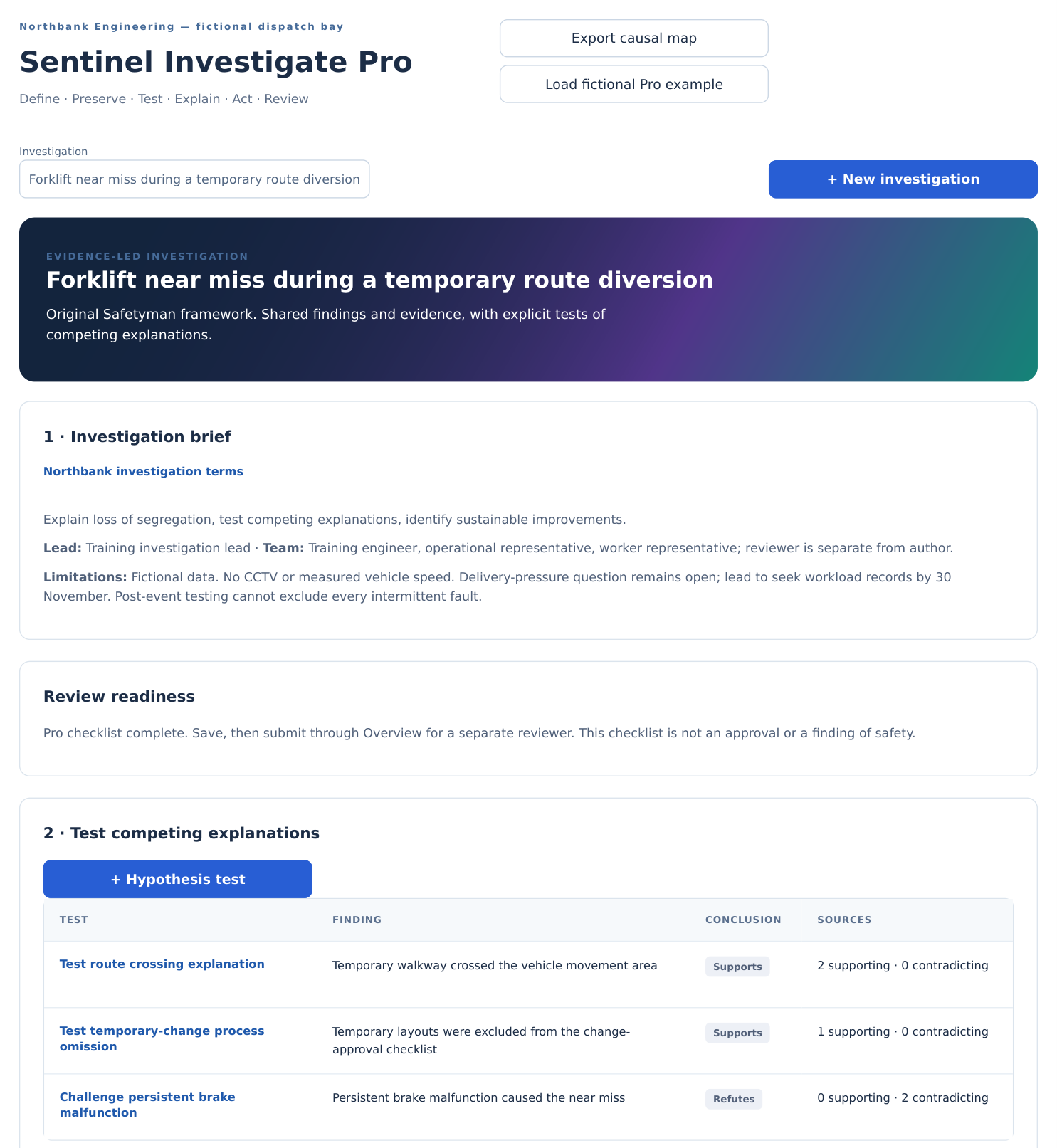
The brief, readiness checks and hypothesis tests share the selected investigation. Readiness can pass while actions remain open: it checks that improvement is planned and reviewable, not that all work is finished.
Static reference from the supplied application with fictional data; not a live Hostinger screenshot.
Back to contents ↑PDF page 61
VISUAL WALKTHROUGH
Interface reference: hypothesis test
Inspect the method and expected result before deciding what the observation means.
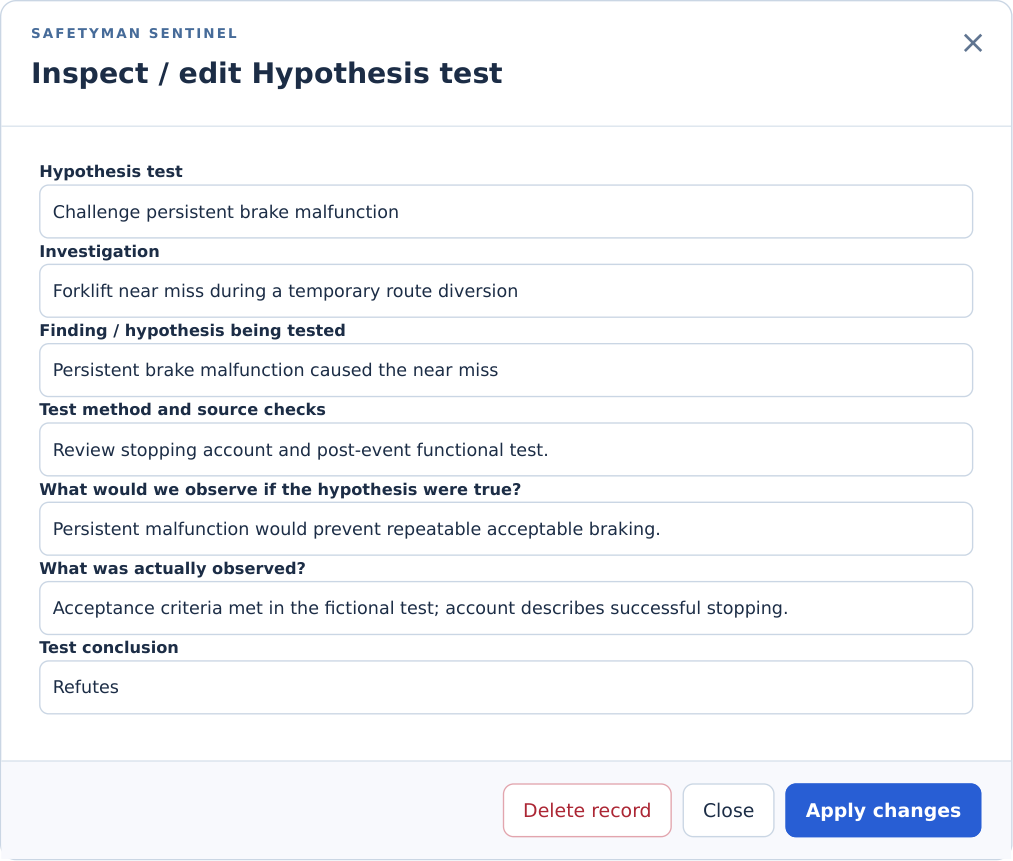
The full form also contains supporting and contradicting evidence selectors and interpretation. This reference shows its upper fields; use the Test chapter for the complete procedure.
Static reference from the supplied application with fictional data; not a live Hostinger screenshot.
Back to contents ↑PDF page 62
HELP AND LIMITATIONS
Troubleshooting Pro and preserving trust
Resolve the cause of a warning rather than bypassing the workflow.
01
Pro tab missing. Check Company products, global Investigate availability, annual licence and the user's company allocation. Reload after changes.
02
Cannot select the intended finding. Close the form and select the correct investigation first. Sources from another investigation are deliberately rejected.
03
Test cannot be saved. For a completed test, provide the method, expected and observed results, reasoning and evidence. Supports or Refutes requires corroborated evidence on the relevant side.
04
Review submission blocked. Read the Pro readiness panel. Missing limitations, unresolved refuting tests, incomplete action criteria or planned tests can block submission.
05
Transfer is stale. A changed source may no longer match its frozen snapshot. Reject the old proposal and prepare a new one; do not conceal the change.
06
Use AI carefully. The existing AI assistant receives only the text you deliberately submit. Include source identifiers, remove unnecessary personal data, check every suggestion and keep unverified output as a hypothesis. No autonomous causal conclusion is approved.
EVIDENCE FILES · VERSION 1.4.0
Upload and retain supporting evidence
This online supplement covers file attachments introduced after the downloadable main guide.
- Open your company assessment, choose Investigate or Investigate Pro and open the Evidence register.
- Create the evidence record. Record the source, custodian, date, reliability and limitations, then apply and save the assessment.
- Choose View / upload files beside the evidence record. The same control is available when inspecting an existing evidence record.
- Click Upload files and select files on your device, or drag files into the outlined area. Multiple files upload one at a time. Wait for the retained-file confirmation.
- For Google Docs, choose File → Download → Microsoft Word or PDF, then attach the downloaded file. A live document link does not retain a copy. Word for Mac uses the same .docx format. Apple Pages files can be attached directly when saved as a single .pages file; export a Pages folder to Word or PDF.
- Check the file list. It records the filename, size, UTC upload date and SHA-256 checksum. Use Download to retrieve the original file.
Access, limits and records
Owners and editors with Investigate allocated can upload. Authorised assessment readers can download. Save outstanding changes before uploading. Files are retained privately in the application database, not the public media library. An upload adds an audit event, increments the assessment revision and returns review status to Draft.
Supported: .doc, .docx, .pages, .pdf, .jpg, .jpeg, .png, .gif and .webp. Limit: 5 MB per file, 100 files or 50 MB per assessment, subject to hosting limits. Macro-enabled .docm, SVG, executable files and Google Drive shortcut files are not supported. Sentinel does not virus-scan uploads or read them automatically with AI.
Files are retained unchanged. A checksum detects byte differences; it does not establish whether the evidence is true or reliable. Record that judgement separately. Download attachments separately: JSON, report exports and Bowtie transfers do not include file bytes. Back up the Sentinel database to preserve attachments.
Removing an evidence record or deleting its assessment blocks normal access to the attachments; the server retains the original files and audit trail. No attachment erasure or restoration interface is included in this release. Practice mode does not retain uploads.
If an upload fails
Read the message, refresh the file list and check which files were retained before retrying. After a connection failure the server may have completed the upload. A concurrent edit requires reloading the assessment first. Hostinger must allow the file size in PHP upload_max_filesize and post_max_size, and sufficient database max_allowed_packet. PHP ZIP is required to validate Word .docx and Pages files. A full database, exhausted quota or audit failure prevents a successful upload.
Back to contents ↑